For authorized installers, it’s possible to create more than 30 flexible logic programs, including ones for the settings file.
# Creating a configuration file In the app, you can create a configuration file and later use it to quickly upload those settings to device, which saves a lot of programming time.Creating a configuration file is only possible when the device is not connected
### Steps to create a configuration file 1. In the main window of the app, click "Next". 2. In the next window, click "Create configuration file". 3. Select device type and firmware version for which you are creating сonfiguration file, then click the "Next". 4. At the top of the app window, there is an information panel. It shows where changes are currently being made (marked in orange) — either on the connected device or in the open configuration file. 5. Set up operating parameters of the security system. **For 6th generation security system** To create a configuration file, go to "Installer Memo" tab and fill in the required fields ***For 3th, 4th, 5th generations security systems*** Click on the information panel and fill in the required fields with information about the created configuration file [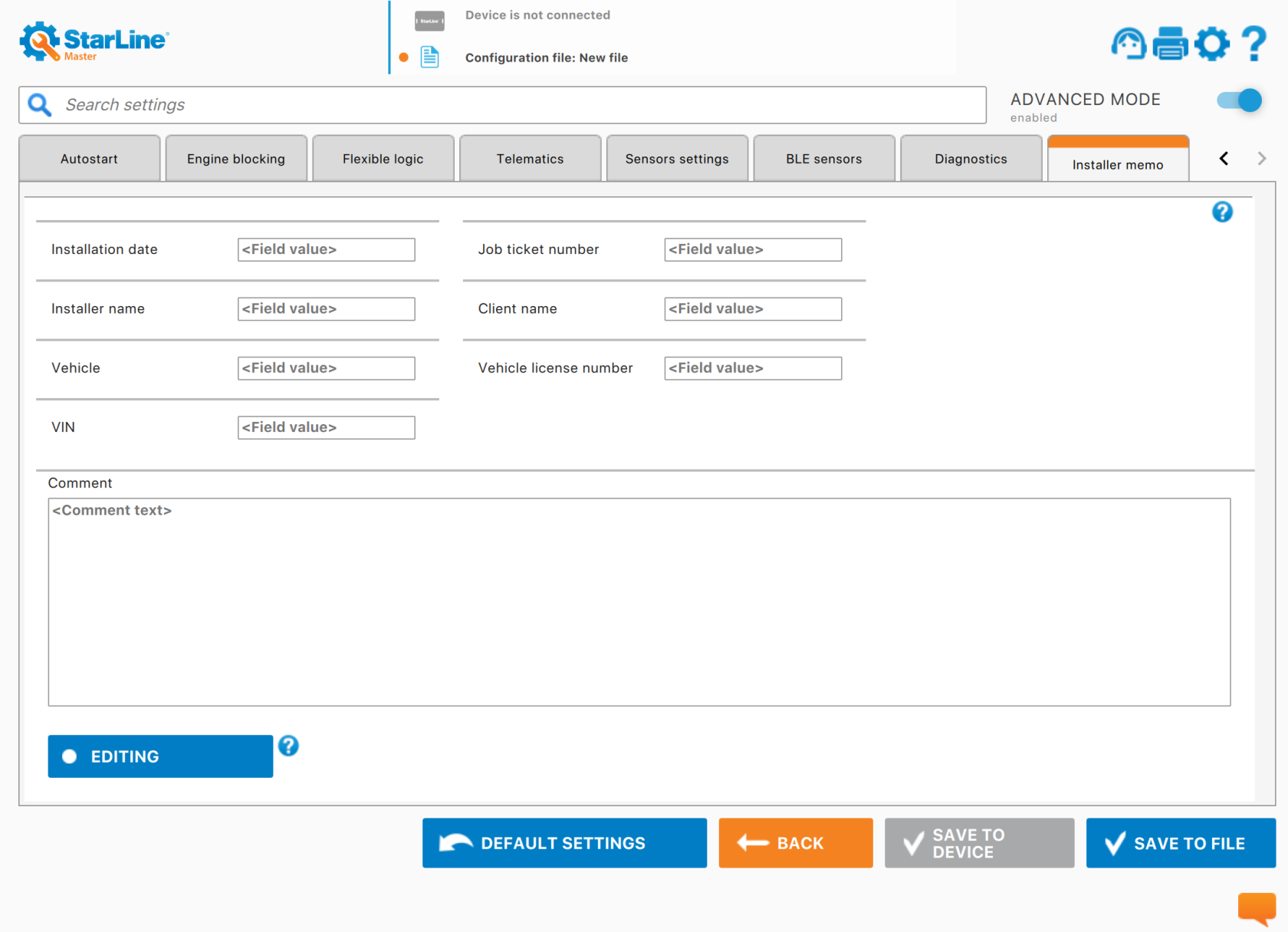](https://help.starline.ru/uploads/images/gallery/2025-09/installer-memo.png) 6. To add or remove fields, press the "Editing" button. [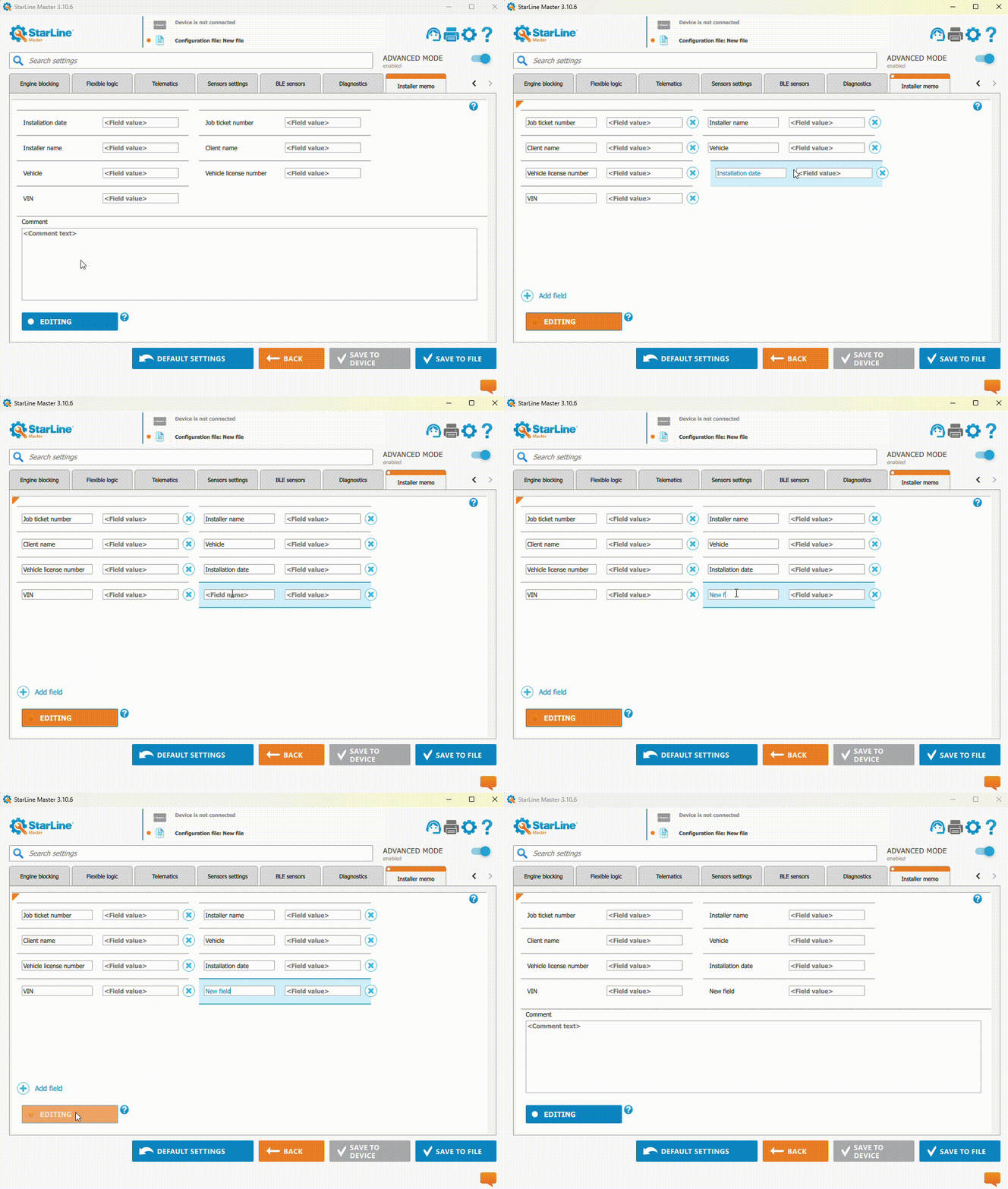](https://help.starline.ru/uploads/images/gallery/2025-09/Lc1editing-fields.gif) 7. After all settings are done, press "Save to file" to create the file. 8. In the window that opens, choose the path to save configuration file and enter the file name. ### Loading configuration from a file into the security system To load a ready configuration file into the device, follow these steps: 1. Make sure the security system appears in the app. 2. In the main window, click the "Next", then "Open configuration file." 3. In the window that opens, select the path to the file on your local drive. 4.If needed, change the settings that are already set.
5. Save settings to device # Connecting 6th Generation Security Systems StarLine Master app lets you set up security systems either by connecting the device to a computer or wirelessly using Bluetooth Smart. ### Connecting a security system to a computer #### StarLine B9, B9v2, B9v3, S9, S9v2, S9v3, E9, E9v2, E9v3, M18, i96CAN, Сигма 15 1\. Connect a security system to a computer using microUSM cabel. 2\. Launch StarLine Master app and make sure the connected device is detected. [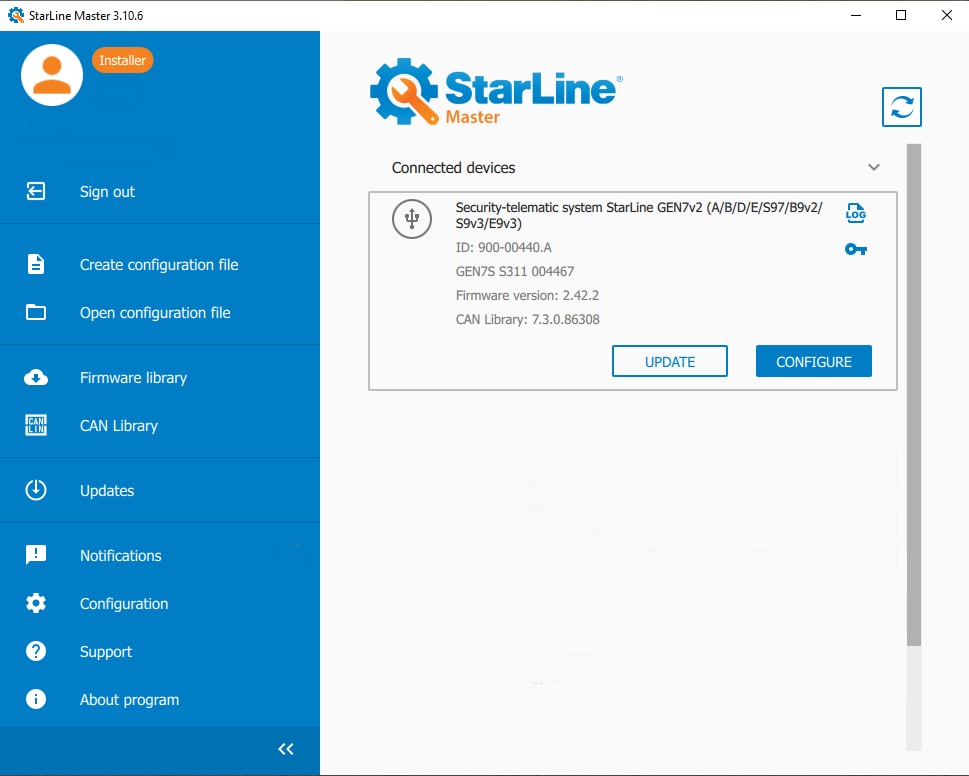](https://help.starline.ru/uploads/images/gallery/2025-09/starline-master-update.jpg) 3\. Press «Configure». 4.If needed, enter service code shown on the owner's plastic card in the next window. [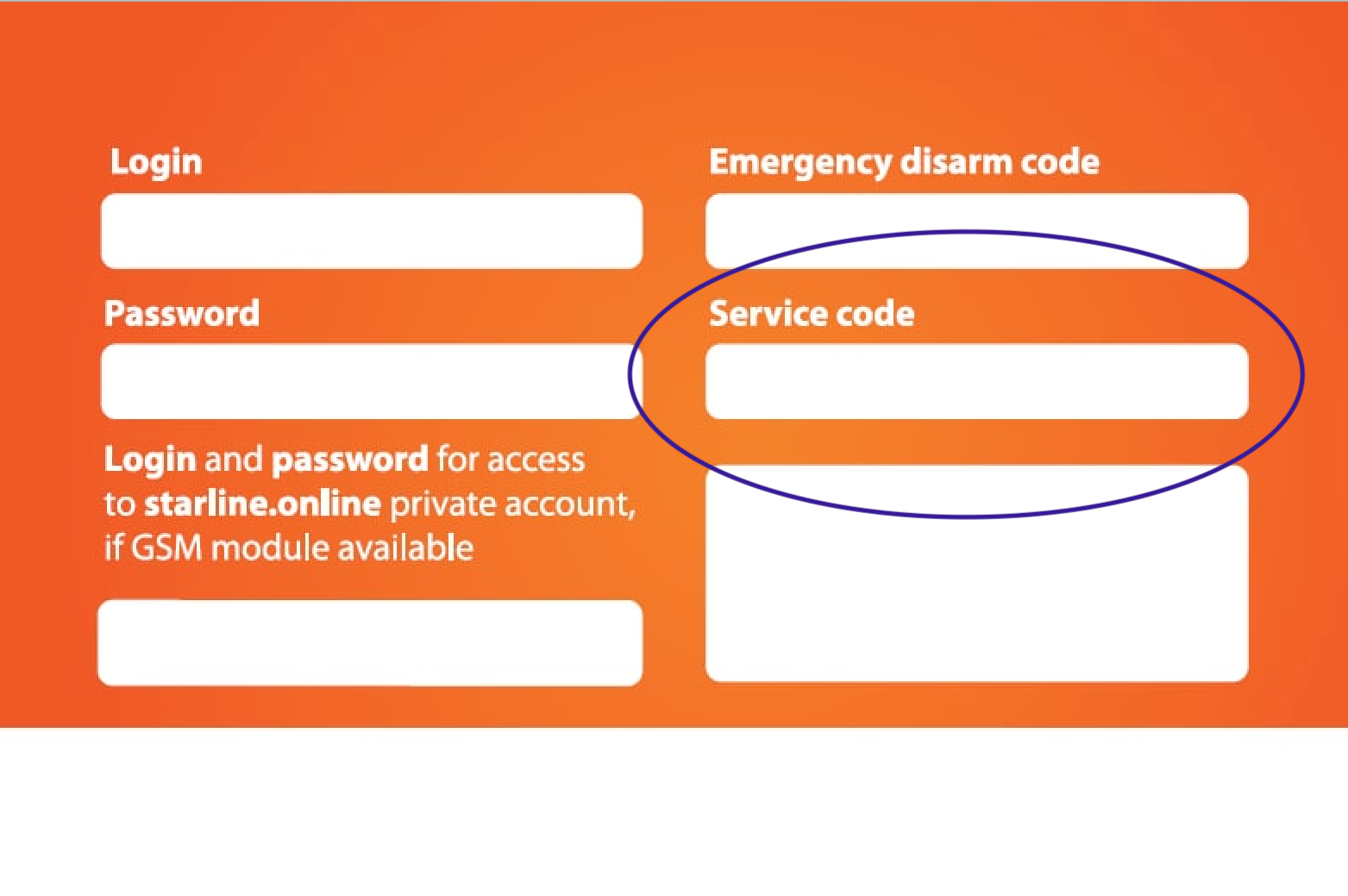](https://help.starline.ru/uploads/images/gallery/2025-09/bVzimage.png) ### Connection via Bluetooth Smart wireless channel #### StarLine B9, B9v2, B9v3, S9, S9v2, S9v3, E9, E9v2, E9v3Use the Bluetooth indicator module to operate the security system with StarLine Master app.[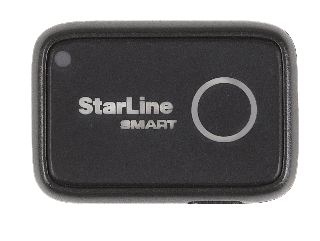](https://help.starline.ru/uploads/images/gallery/2024-01/119image.png)
1. Connect Bluetooth indicator module to a computer using microUSB cable. 2\. Launch StarLine Master app. 3\. Set the security system to "Disarmed" mode 4\. Put the security system into Bluetooth setup mode using one of following ways: 4.1 Press service (valet) button 9 times. Switch ignition On within 3 sec. 4.2 Press service (valet) button 9 times. Wait for the LED on the service button to light up, and while it is on, press the service button once. 4.3 Send an SMS with SETUP+ (for security systems with a GSM module). 5\. Make sure the Bluetooth indicator module and device are detected. Select the device from the list. 6\. Click «Configurate». 7\. If needed, enter service code shown on the owner's plastic card in the next window. [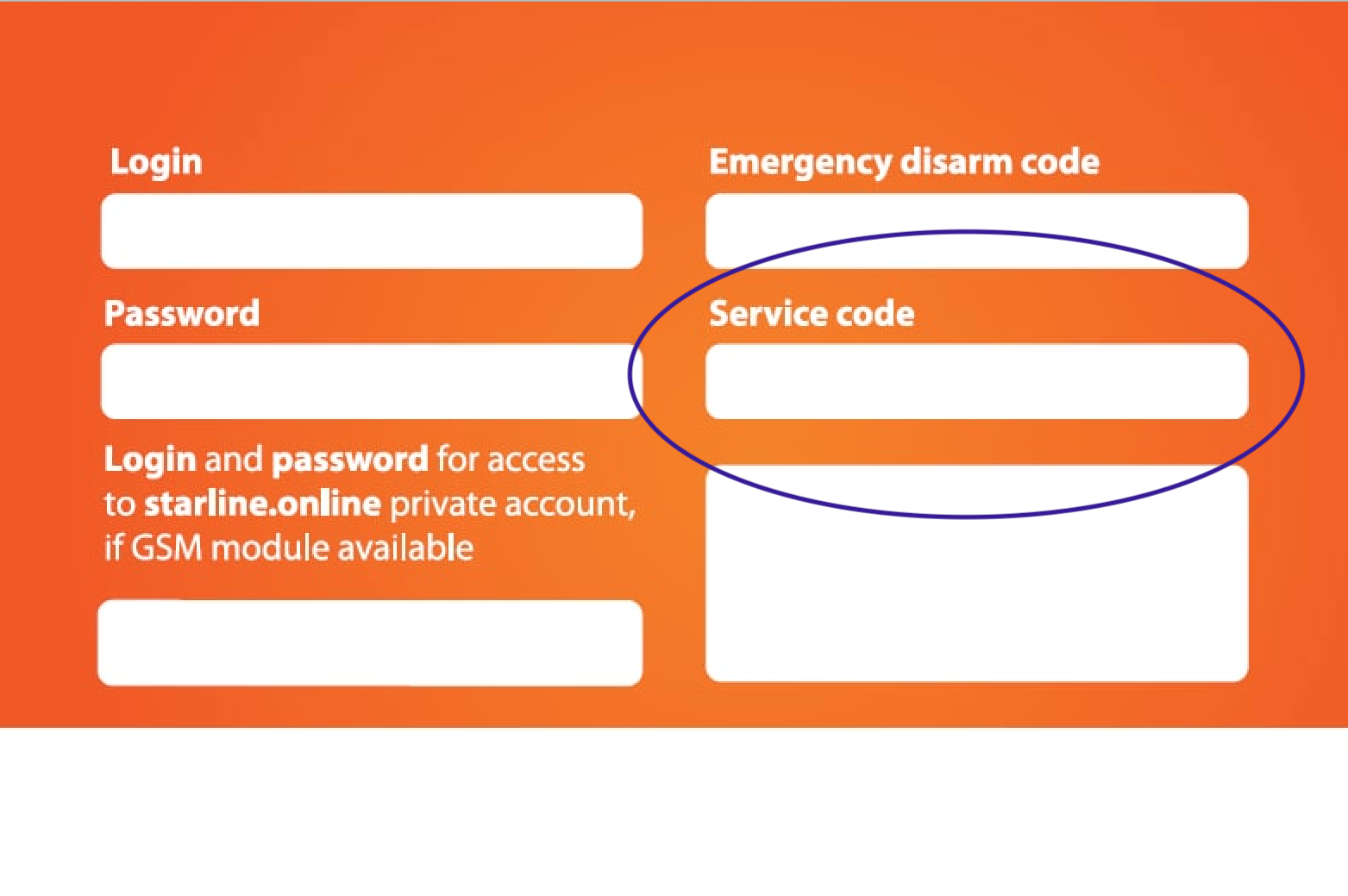](https://help.starline.ru/uploads/images/gallery/2025-09/Mp1image.png)After completing the wireless setup, switch off the ignition (for security systems with a GSM module, send an SMS with SETUP-).
#### StarLine i96CANUse the Bluetooth indicator module to operate the security system with StarLine Master app.[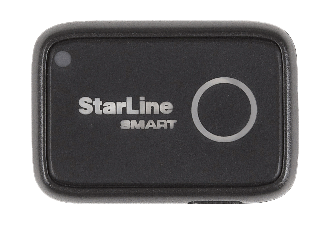](https://help.starline.ru/uploads/images/gallery/2024-01/SxMimage.png)
1. Connect Bluetooth indicator module to a computer using microUSB cable. 2\. Launch StarLine Master app. 3\. Set immobiliser to "Disarm" mode. 4\. Switch ignition On. Press service (valet) button 9 times. 5\. Turn the ignition off and then on. 6\. Make sure the Bluetooth indicator module and device are detected. Select the device from the list. 7\. Press «Configure». 8\. If needed, enter service code shown on the owner's plastic card in the next window. [](https://help.starline.ru/uploads/images/gallery/2025-09/Mp1image.png)Turn off the ignition 10 minutes after completing the wireless setup.