StarLine Master
EN version mock manual
- General description
- Firmware library
- Security system configuration
- Setting up the security system parameters
- Creating a configuration file
- Connecting 6th Generation Security Systems
- Firmware update
- Update of StarLine Master app
- StarLine B9, B9v2, B9v3, S9, S9v2, S9v3, E9, E9v2, E9v3, i96CAN, M18, М66
- Wireless Update (Bluetooth Smart)
- StarLine R6, R6 ECO
- Key fob
- Bluetooth Smart Tag
- Export logs
- Download
General description
StarLine Master app is designed to automatically set up and update the firmware of StarLine security systems.
Main functions:
- Fast and easy updating the firmware of security system
- Advanced setup and programming of security and service options
- Flexible configuration of extra channels
- Updating and setting up via BLE Smart
- Diagnostic of security system after setup
Programm installation
Minimum requirements:
- Windows XP/Vista/7/8/10 operating system
- MacOS (10.12+) operating system
- Linux-x64 (ядро 4.1+) operating system
- 1 GHz processor
- 1024 MB of RAM
- 256 MB free hard disk space
- 512 MB video memory on the video card
To download StarLine Master, click here. To install the app, open the file Setup.exe and follow installer program’s instructions.
After installation is finished, a group called "StarLine Master" will appear in the Start menu (unless you chose different settings). Use the shortcut "StarLine Master" to start the app, and use "uninstall StarLine Master" to delete the program.
Firmware library
In the StarLine Master app, you can download files of supported firmware versions for all security systems in the "Firmware Library" section without connecting a security system.
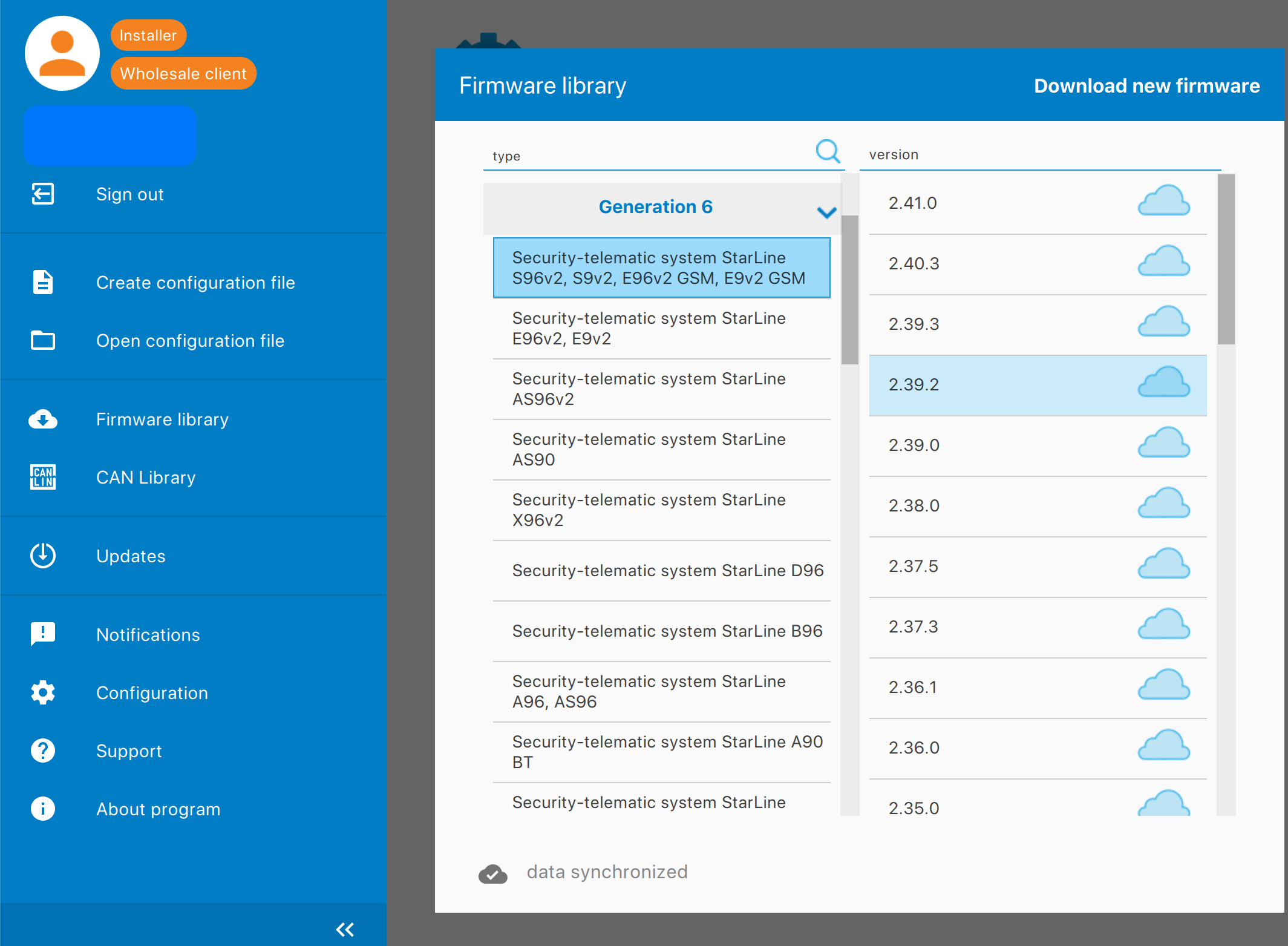
Symbols:
 The firmware file is stored in cloud storage and can be downloaded.
 The firmware file is on the local disk but is missing from the cloud storage. We recommend deleting this file (click the icon) to reduce the space used on the local disk.
 The file is in the cloud storage, but cannot be reached due to connection issues.
If the firmware does not have an icon, it means the firmware file is on the computer's local disk.
If you see "Firmware outdated," update to the latest version. If it says "Firmware corrupted," update immediately because this version has serious bugs.
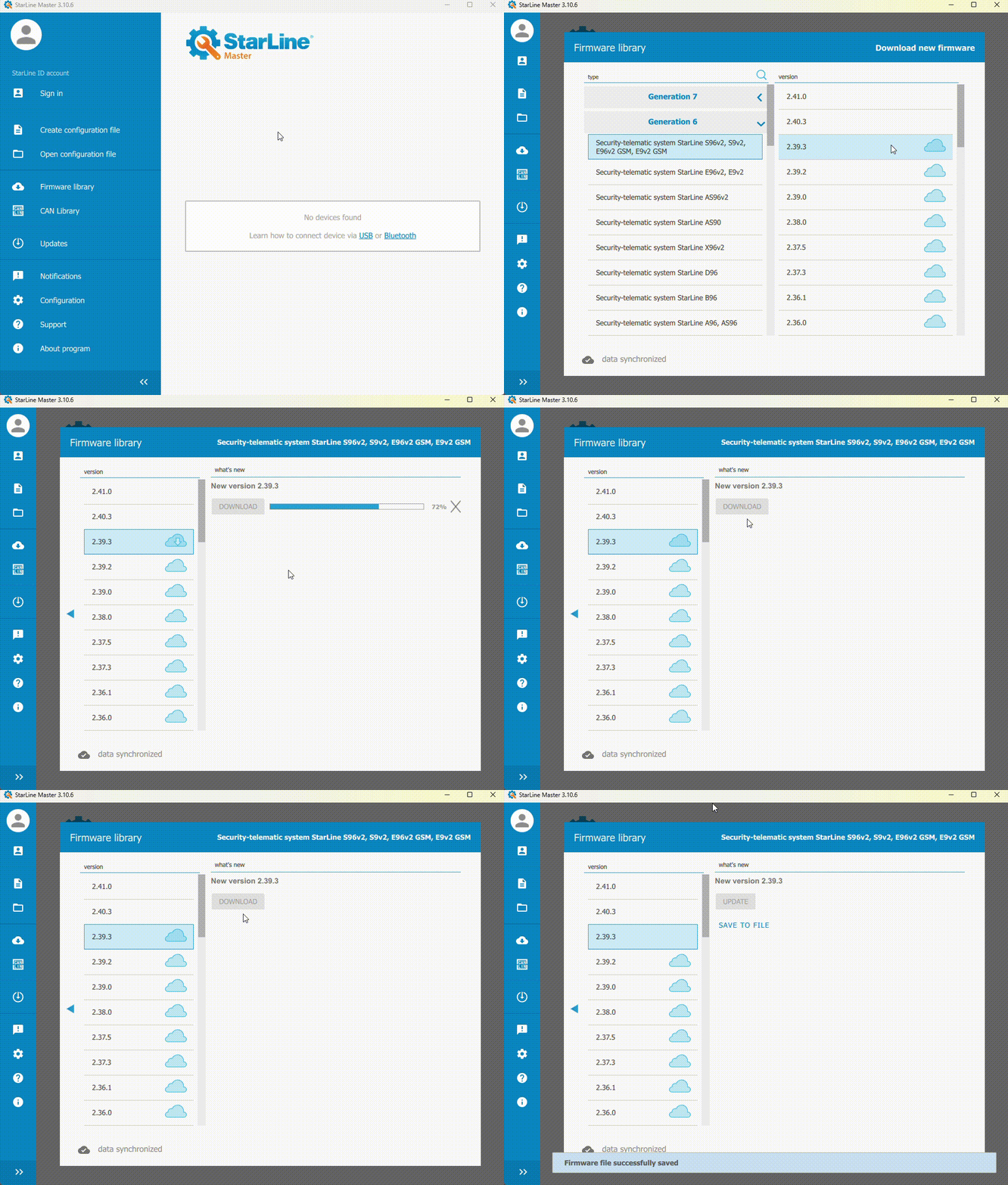
Downloading a file
To download the firmware file:
1. Make sure the app isn’t connected to any device.
2. In the main window, click “Firmware Library.”
3. Choose your device type and firmware version, then click “Download.”
4. Save the file to your computer.
Security system configuration
Setting up the security system parameters
All security system settings are grouped and organized into tabs based on their functions.
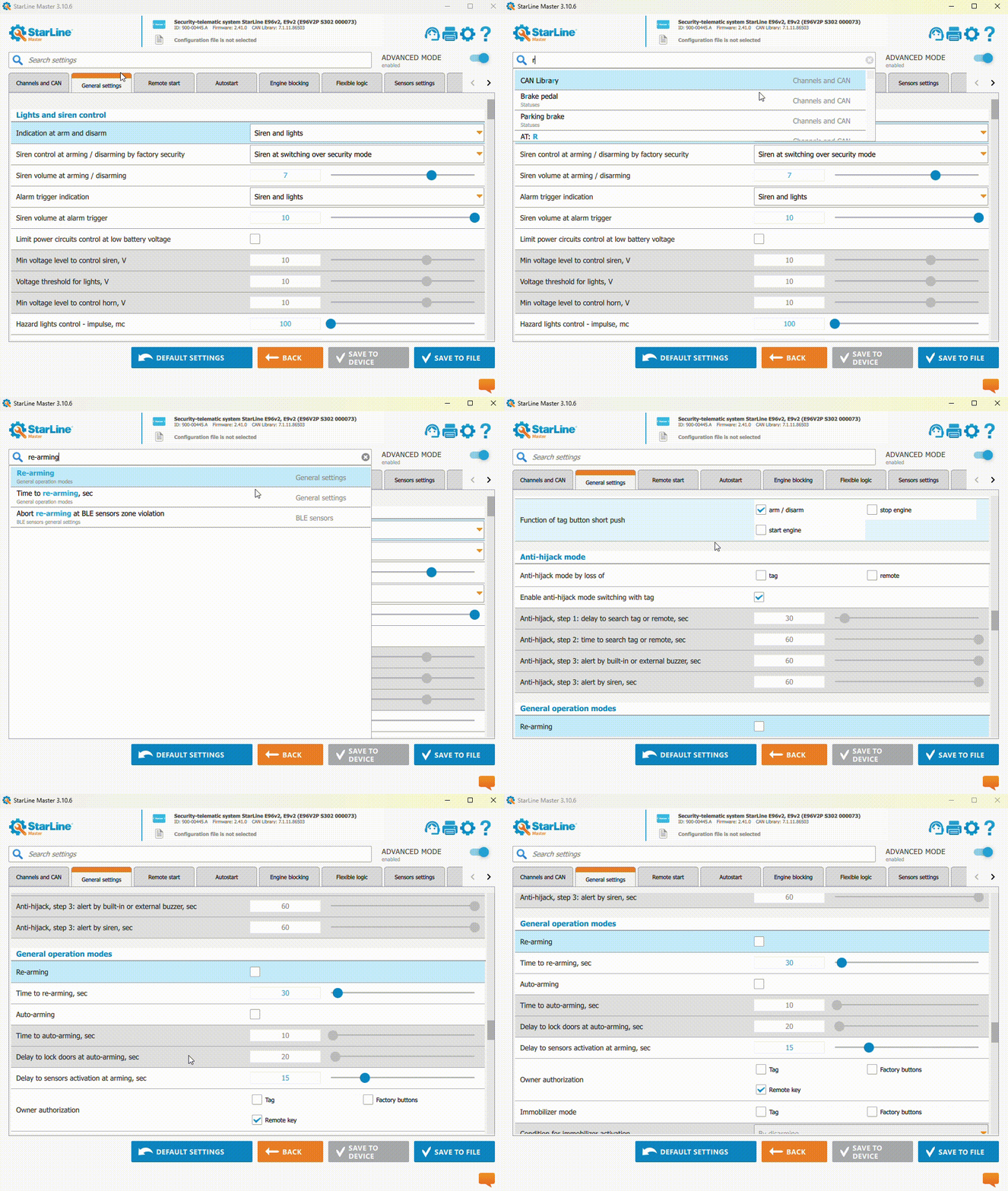
Search Settings
To quickly find a setting, use the search bar at the top of the app window.
Type the name of the setting and pick it from the list that appears.
Changing settings
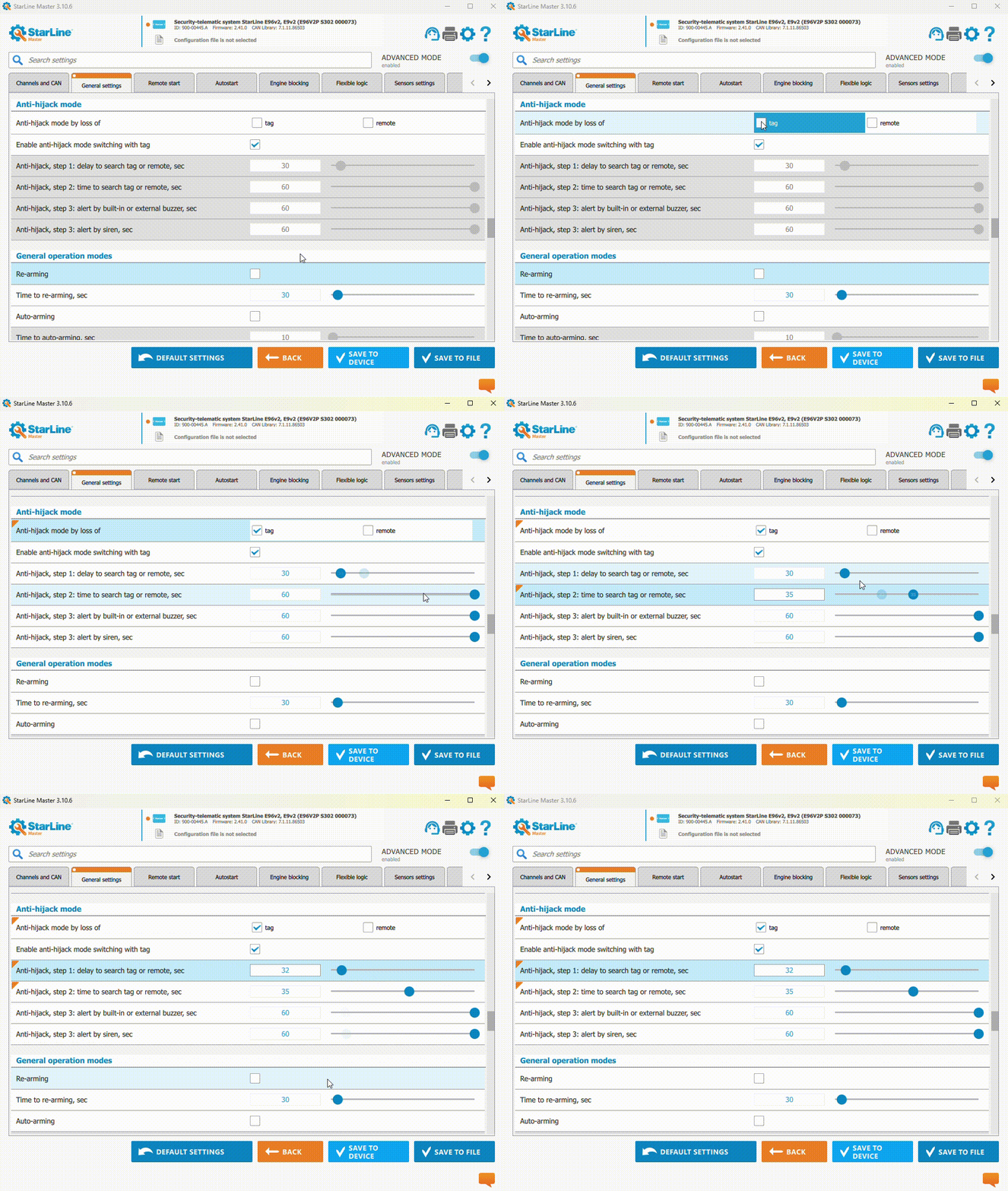
A setting that you changed and is different from the original will be marked with an orange tag.
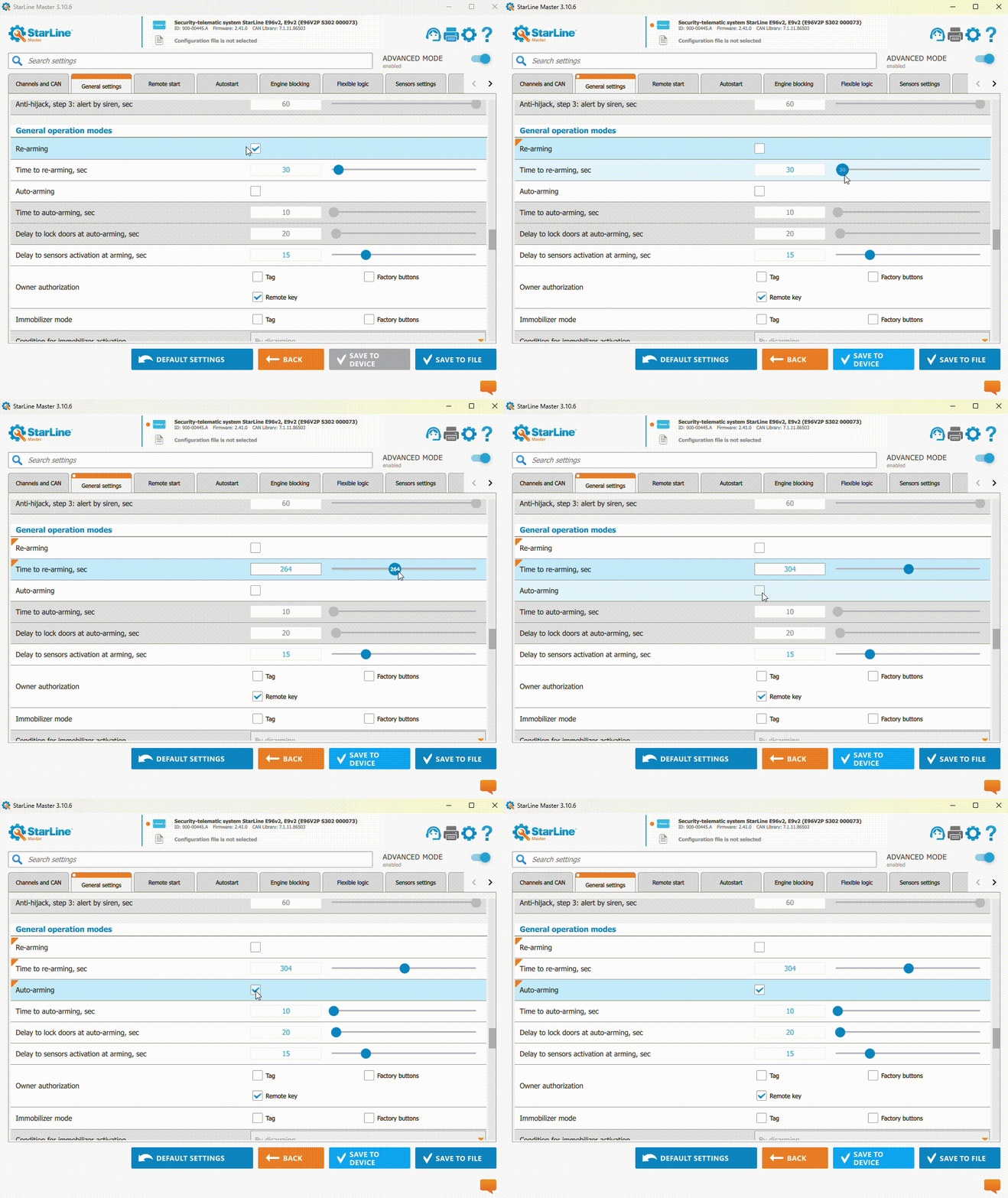
If a setting is gray, it means it’s either not available for this device or locked. To unlock it, turn on the related option.
Saving settings
After setting all the needed options for the security system, save your changes.
Click the “Save to device”.
After that you’ll see a message when the settings are successfully saved to the device.
Factory reset
To reset the system settings to default, click the “Default settings”, then click “Save to device.”
Making a Flexible logic program
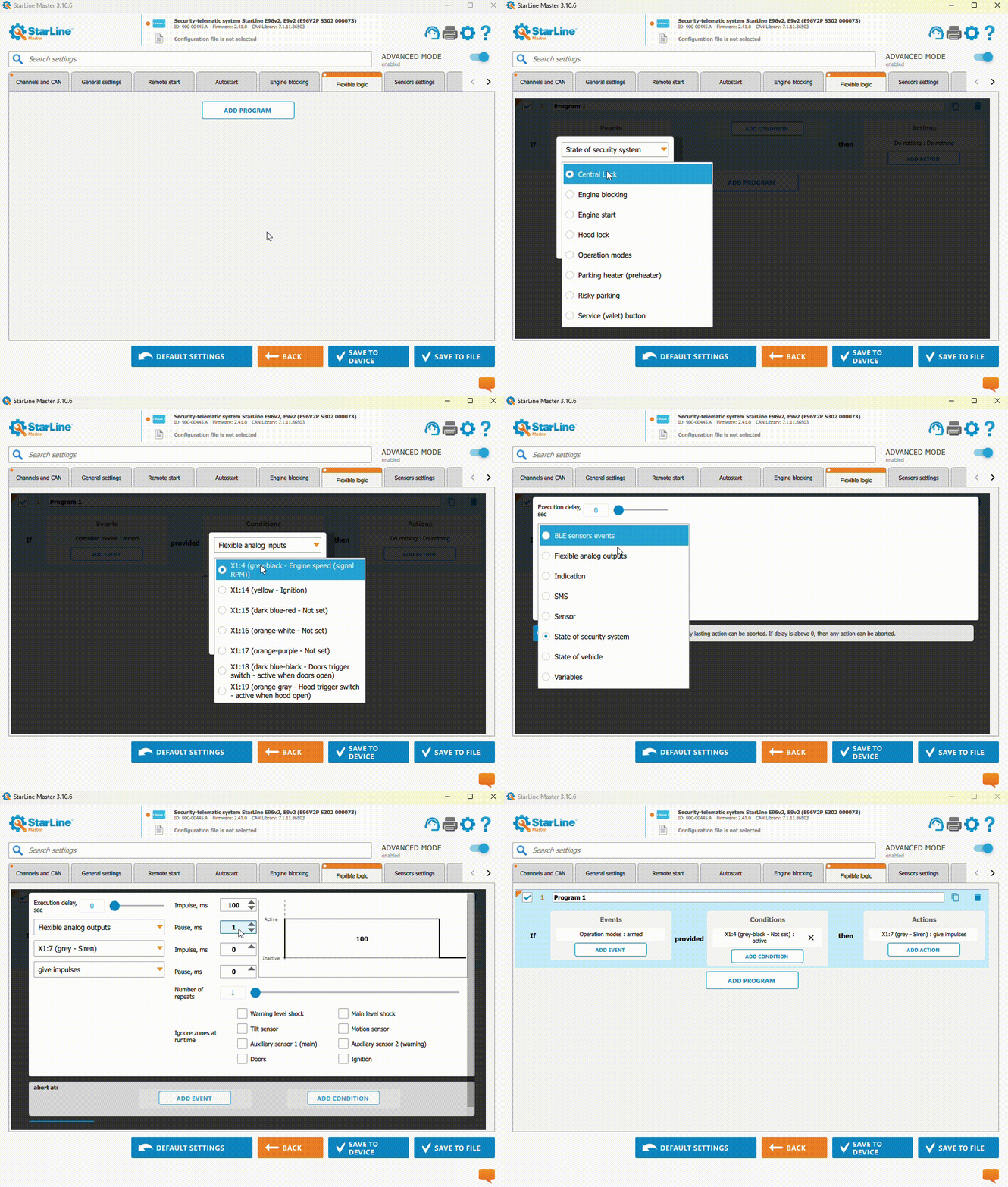
On the "Flexible Logic" tab, you can create the features you need that aren't already in the vehicle or security system.
For example, to set up a siren reminder that the lights are on, follow these steps:
1. To create a new option, click the "Add Program". Enter the specify program name and tick to activate it.
2. Place the cursor in the "Events" field. In the pop-up window, choose the event "Armed" from the drop-down lists and then click the "Done".
3. In the "Conditions" field, set the condition for the selected event to happen — "X1:4 (grey-black—not set): active."
4. In the "Actions" field, choose the action that will happen after event occurs under selected condition.