If the firmware does not have an icon, it means the firmware file is on the computer's local disk.
If you see "Firmware outdated," update to the latest version. If it says "Firmware corrupted," update immediately because this version has serious bugs. ### Downloading a file To download the firmware file: 1\. Make sure the app isn’t connected to any device. 2\. In the main window, click “Firmware Library.” 3\. Choose your device type and firmware version, then click “Download.” 4\. Save the file to your computer. [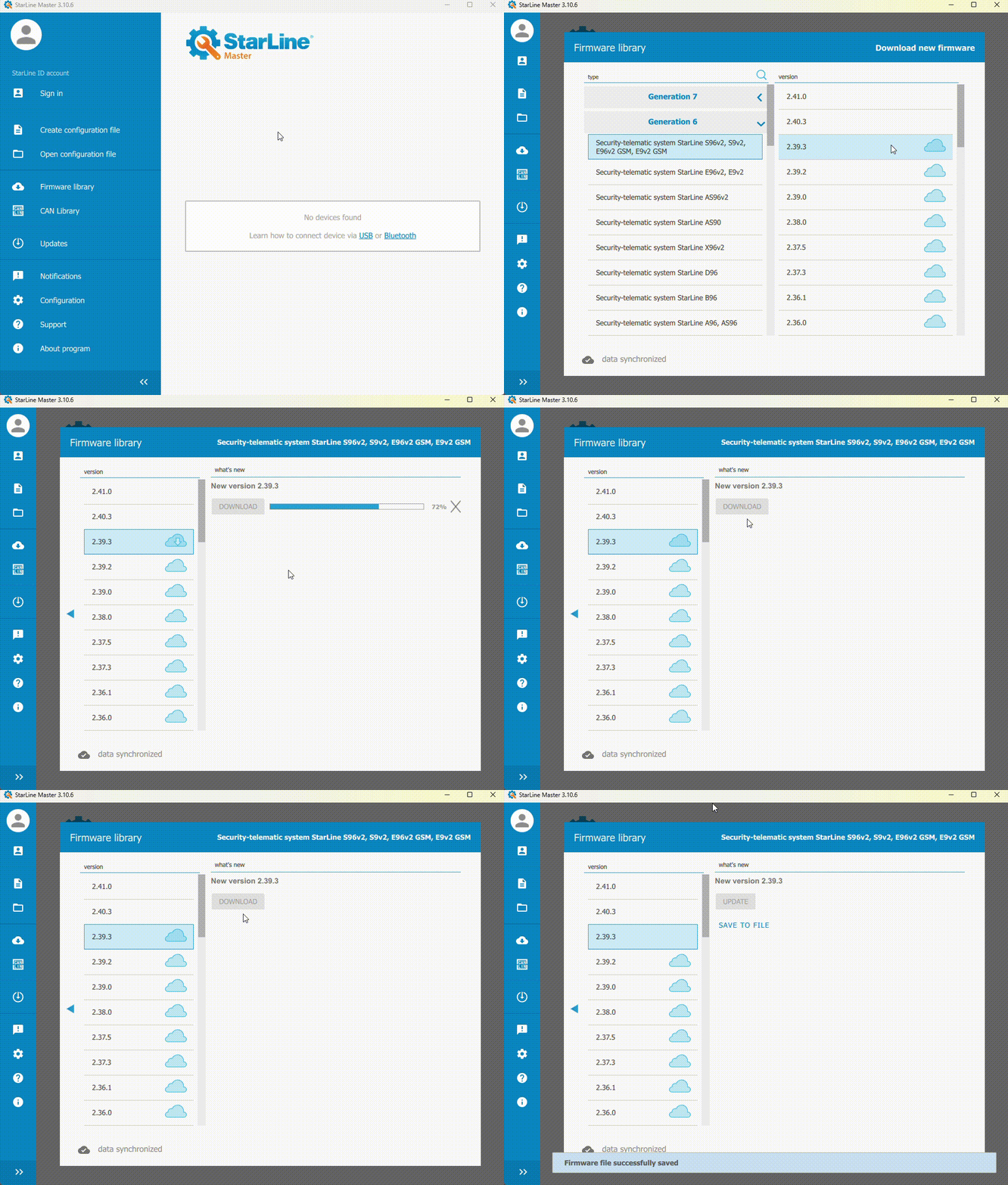](https://help.starline.ru/uploads/images/gallery/2025-09/recording-2025-08-25-110707.gif) # Security system configuration # Setting up the security system parameters All security system settings are grouped and organized into tabs based on their functions. ### Search Settings To quickly find a setting, use the search bar at the top of the app window. Type the name of the setting and pick it from the list that appears. [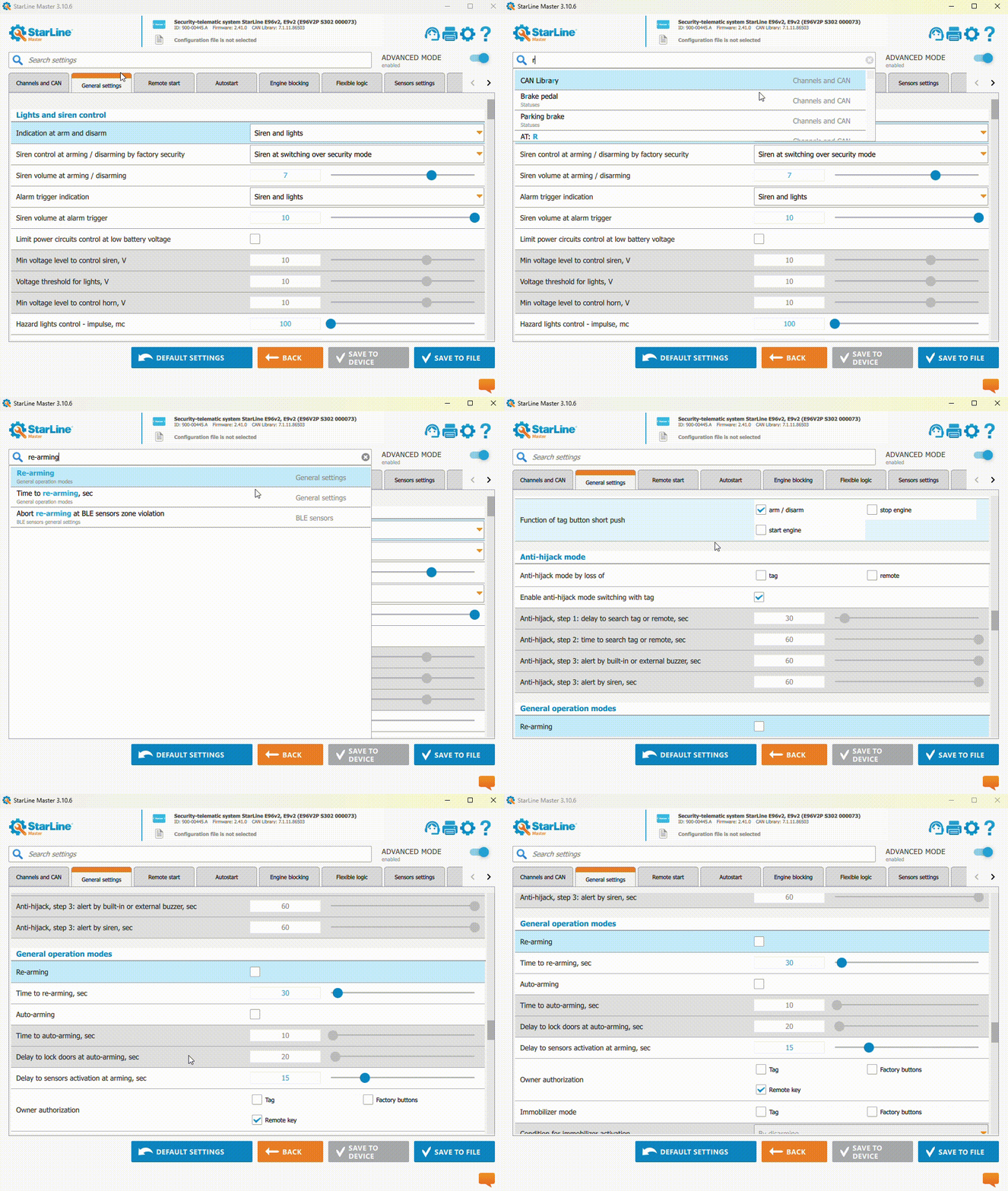](https://help.starline.ru/uploads/images/gallery/2025-09/search-settings.gif) ### Changing settings A setting that you changed and is different from the original will be marked with an orange tag. [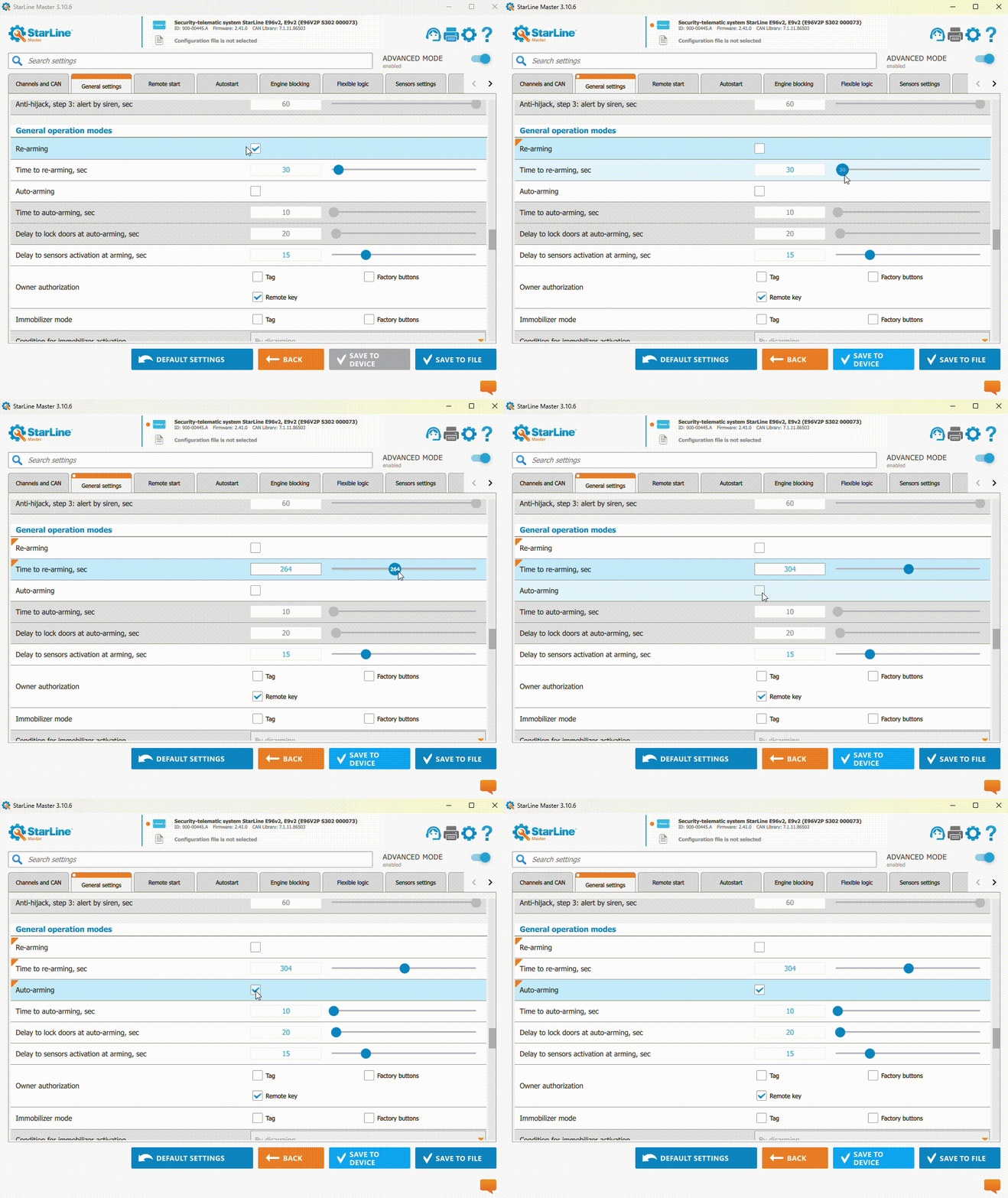](https://help.starline.ru/uploads/images/gallery/2025-09/changing-settings.gif) If a setting is gray, it means it’s either not available for this device or locked. To unlock it, turn on the related option. [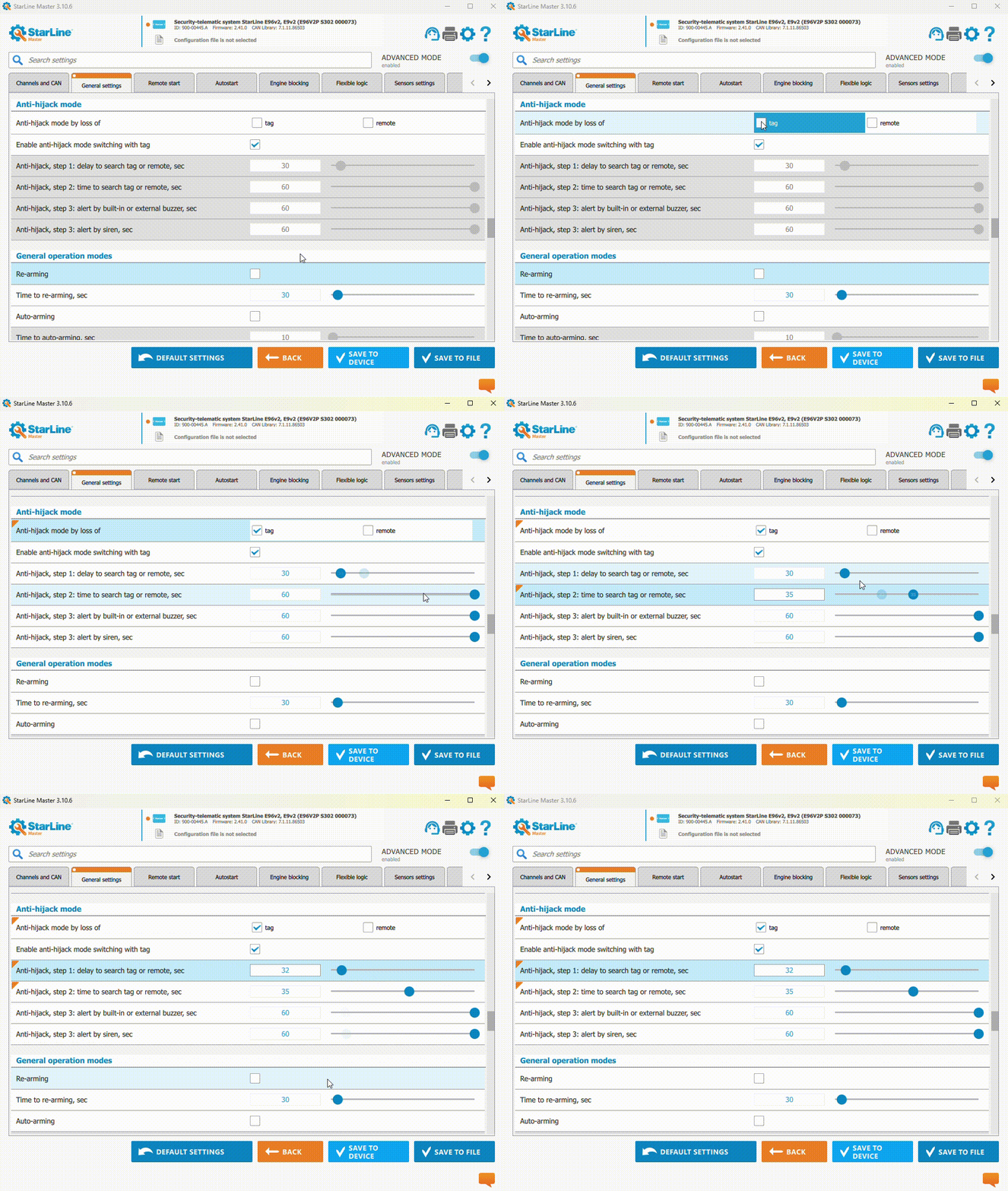](https://help.starline.ru/uploads/images/gallery/2025-09/changing-settings-2.gif) ### Saving settings After setting all the needed options for the security system, save your changes. Click the “Save to device”. After that you’ll see a message when the settings are successfully saved to the device. ### Factory reset To reset the system settings to default, click the “Default settings”, then click “Save to device.” ### Making a Flexible logic program On the "Flexible Logic" tab, you can create the features you need that aren't already in the vehicle or security system. For example, to set up a siren reminder that the lights are on, follow these steps: 1\. To create a new option, click the "Add Program". Enter the specify program name and tick to activate it. 2\. Place the cursor in the "Events" field. In the pop-up window, choose the event "Armed" from the drop-down lists and then click the "Done". 3\. In the "Conditions" field, set the condition for the selected event to happen — "X1:4 (grey-black—not set): active." 4\. In the "Actions" field, choose the action that will happen after event occurs under selected condition. [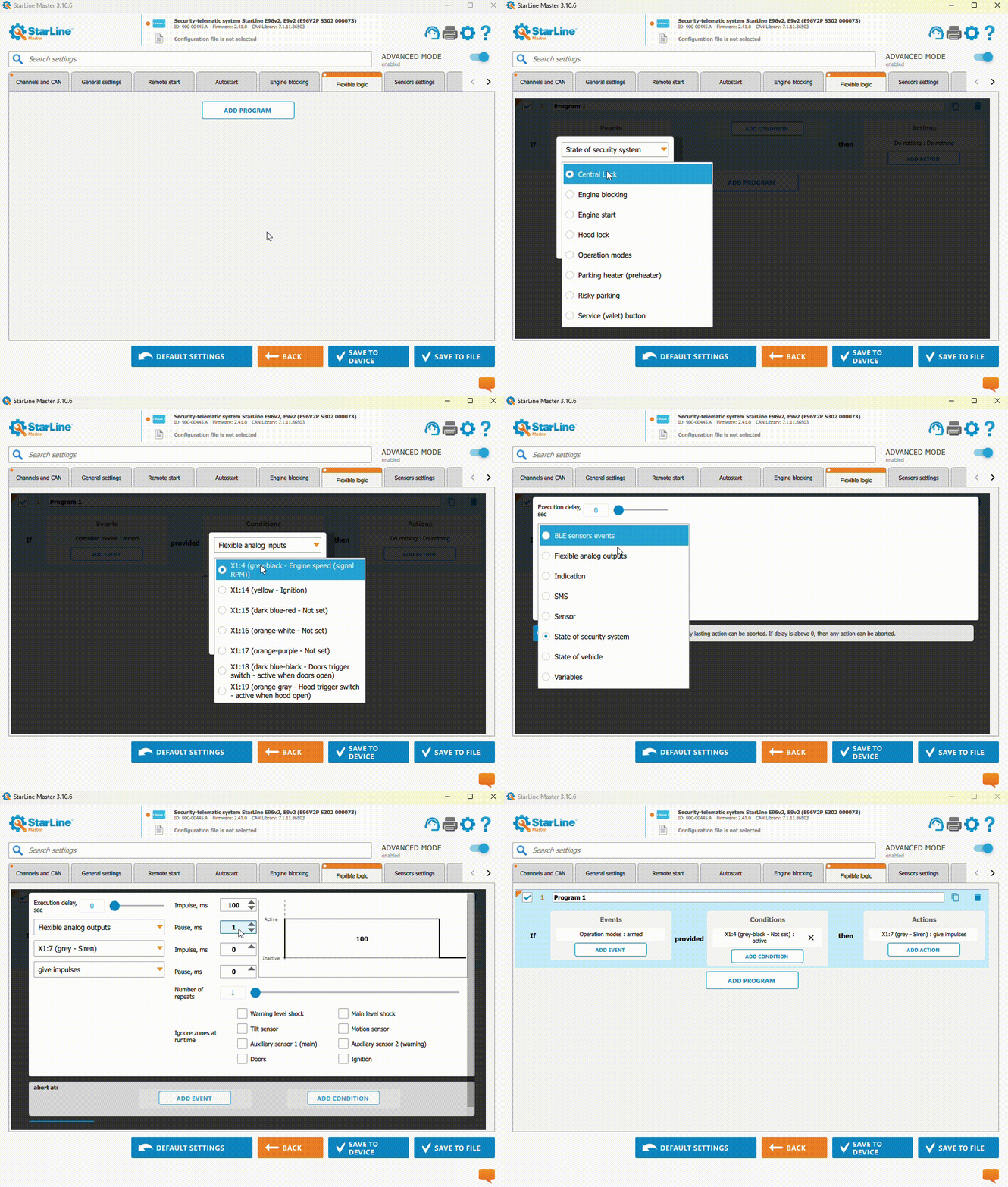](https://help.starline.ru/uploads/images/gallery/2025-09/making-flex-logic-program.gif)For authorized installers, it’s possible to create more than 30 flexible logic programs, including ones for the settings file.
# Creating a configuration file In the app, you can create a configuration file and later use it to quickly upload those settings to device, which saves a lot of programming time.Creating a configuration file is only possible when the device is not connected
### Steps to create a configuration file 1. In the main window of the app, click "Next". 2. In the next window, click "Create configuration file". 3. Select device type and firmware version for which you are creating сonfiguration file, then click the "Next". 4. At the top of the app window, there is an information panel. It shows where changes are currently being made (marked in orange) — either on the connected device or in the open configuration file. 5. Set up operating parameters of the security system. **For 6th generation security system** To create a configuration file, go to "Installer Memo" tab and fill in the required fields ***For 3th, 4th, 5th generations security systems*** Click on the information panel and fill in the required fields with information about the created configuration file [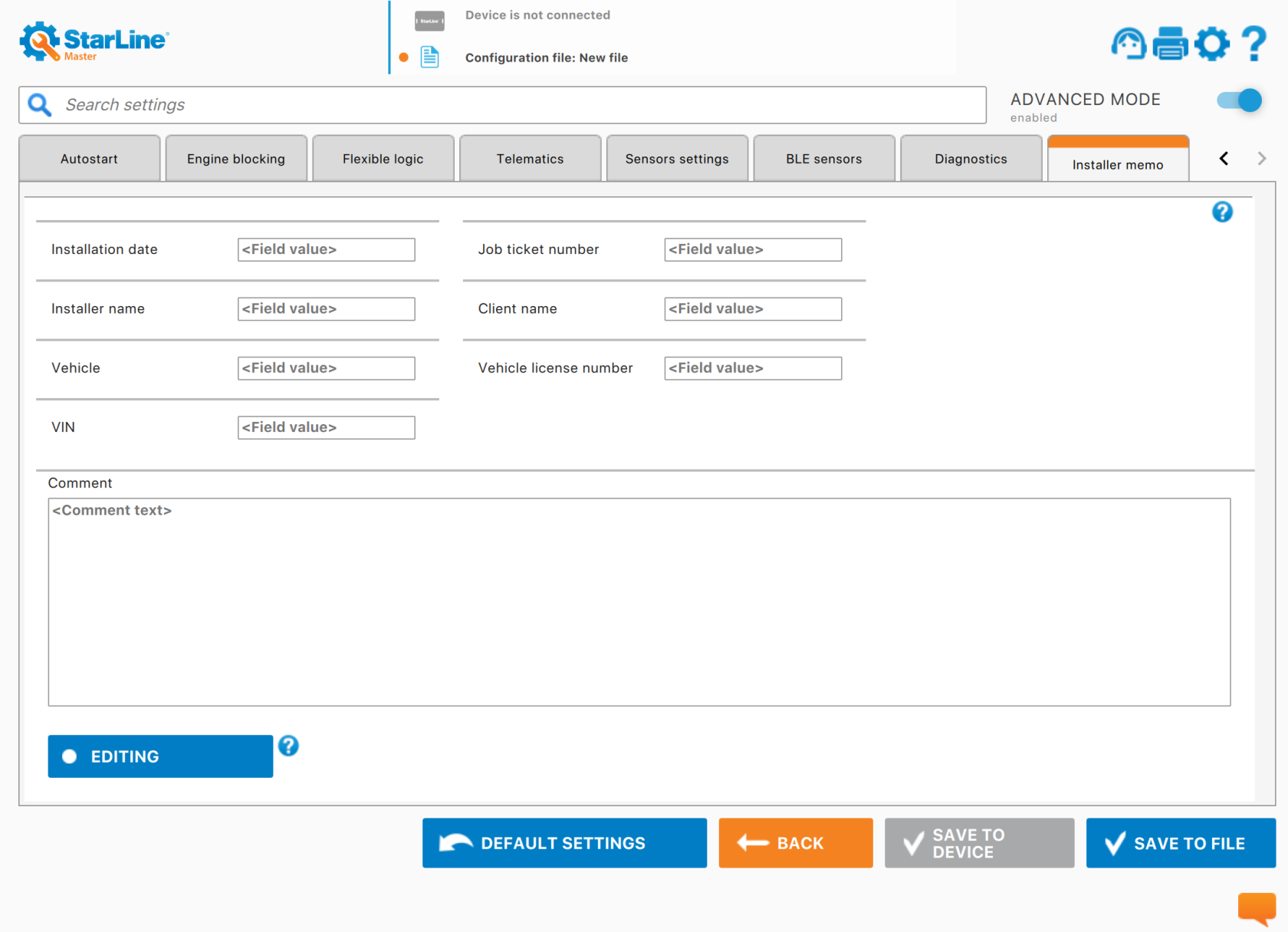](https://help.starline.ru/uploads/images/gallery/2025-09/installer-memo.png) 6. To add or remove fields, press the "Editing" button. [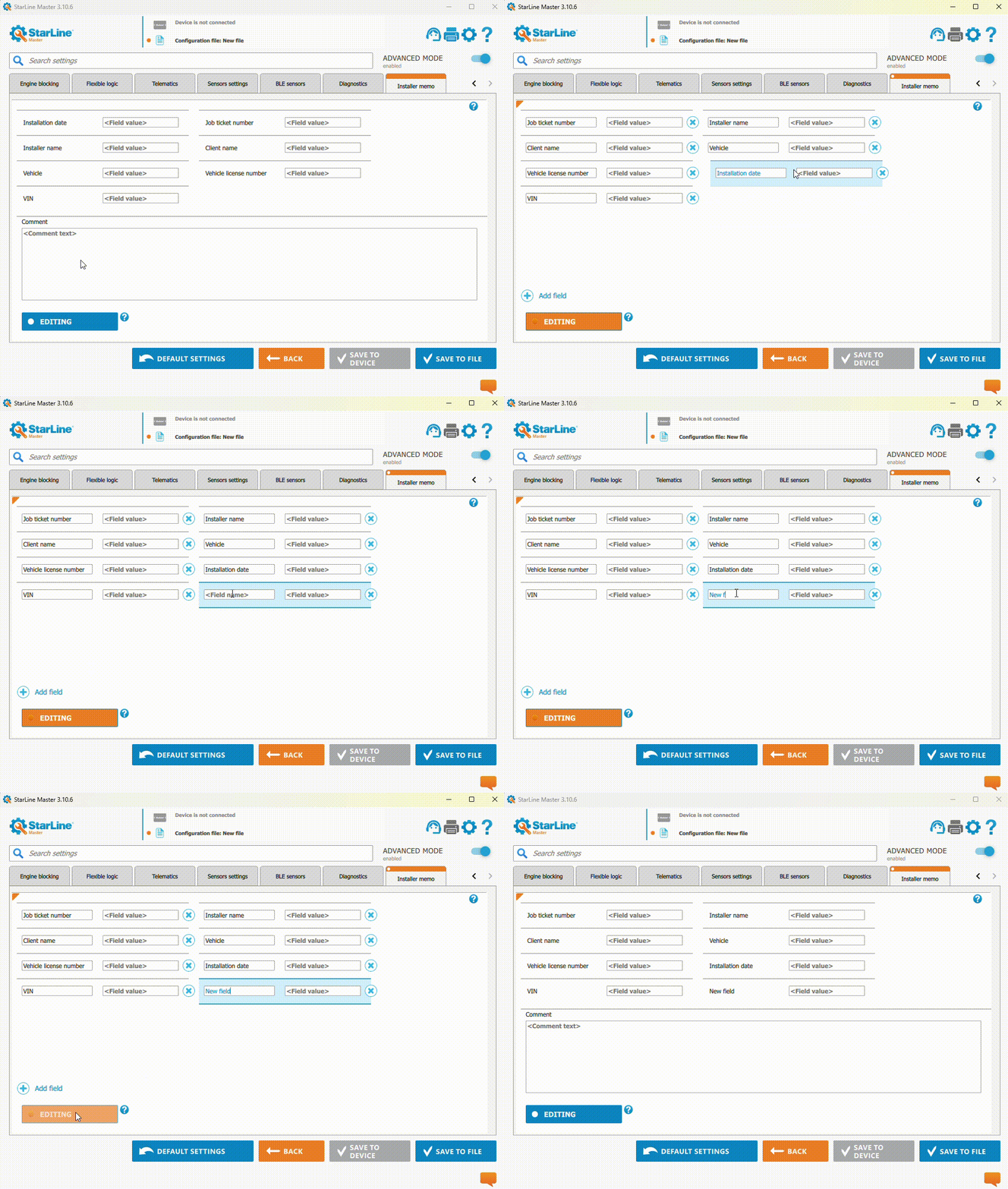](https://help.starline.ru/uploads/images/gallery/2025-09/Lc1editing-fields.gif) 7. After all settings are done, press "Save to file" to create the file. 8. In the window that opens, choose the path to save configuration file and enter the file name. ### Loading configuration from a file into the security system To load a ready configuration file into the device, follow these steps: 1. Make sure the security system appears in the app. 2. In the main window, click the "Next", then "Open configuration file." 3. In the window that opens, select the path to the file on your local drive. 4.If needed, change the settings that are already set.
5. Save settings to device # Connecting 6th Generation Security Systems StarLine Master app lets you set up security systems either by connecting the device to a computer or wirelessly using Bluetooth Smart. ### Connecting a security system to a computer #### StarLine B9, B9v2, B9v3, S9, S9v2, S9v3, E9, E9v2, E9v3, M18, i96CAN, Сигма 15 1\. Connect a security system to a computer using microUSM cabel. 2\. Launch StarLine Master app and make sure the connected device is detected. [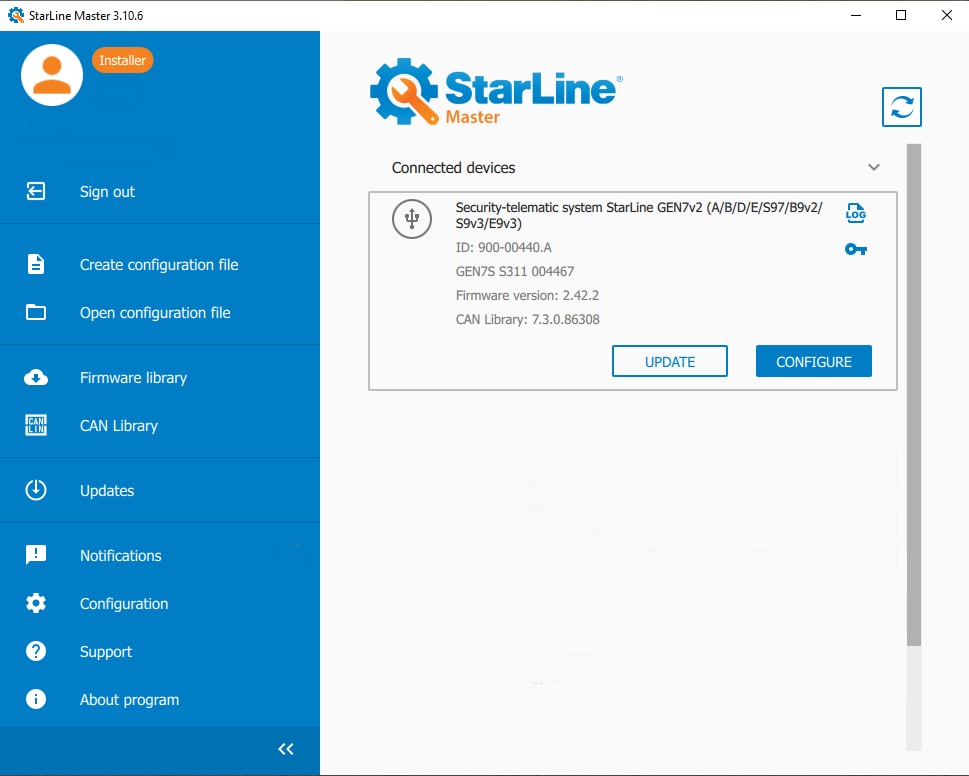](https://help.starline.ru/uploads/images/gallery/2025-09/starline-master-update.jpg) 3\. Press «Configure». 4.If needed, enter service code shown on the owner's plastic card in the next window. [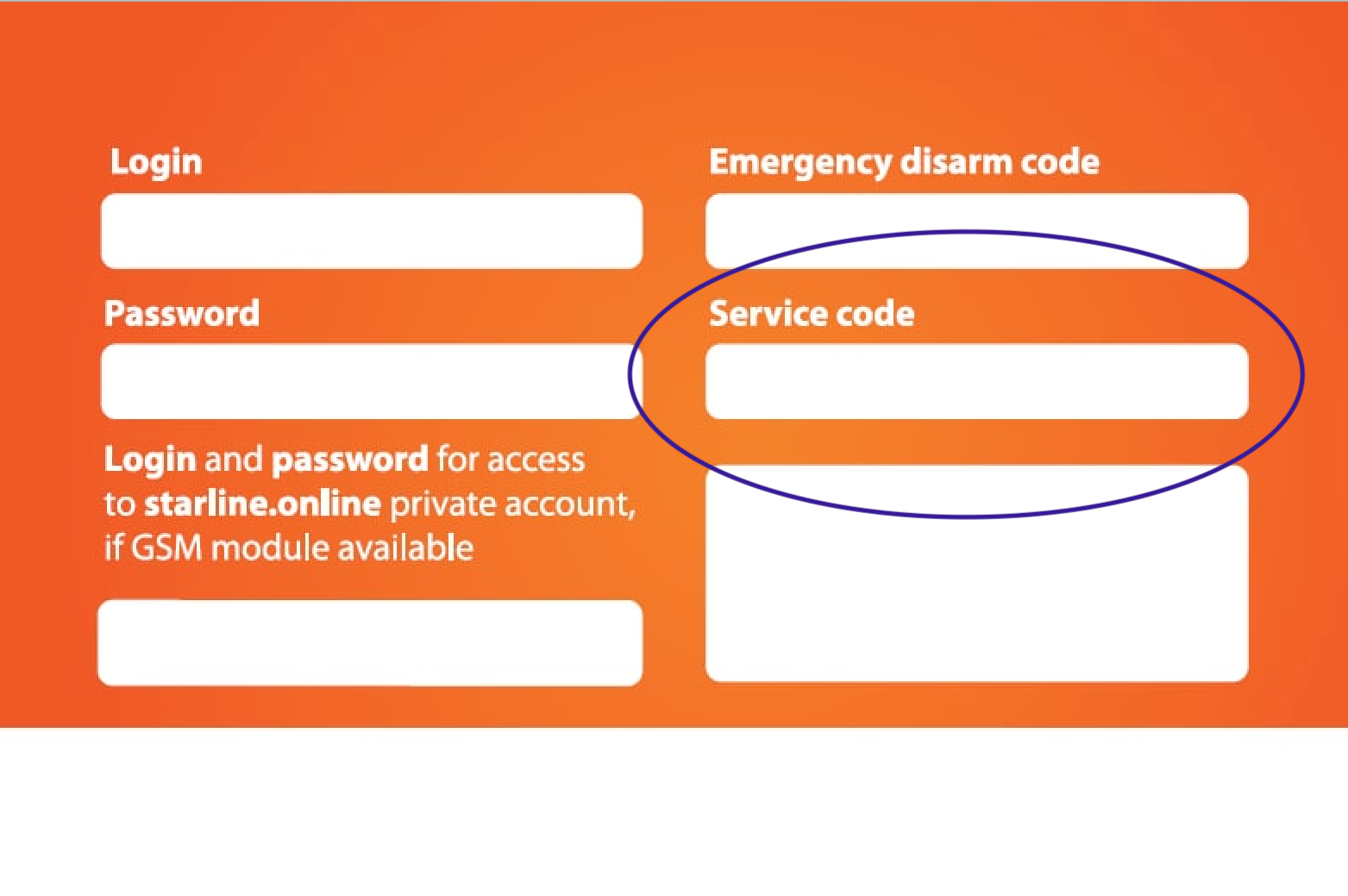](https://help.starline.ru/uploads/images/gallery/2025-09/bVzimage.png) ### Connection via Bluetooth Smart wireless channel #### StarLine B9, B9v2, B9v3, S9, S9v2, S9v3, E9, E9v2, E9v3Use the Bluetooth indicator module to operate the security system with StarLine Master app.[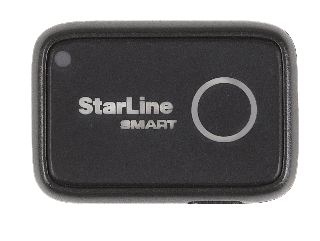](https://help.starline.ru/uploads/images/gallery/2024-01/119image.png)
1. Connect Bluetooth indicator module to a computer using microUSB cable. 2\. Launch StarLine Master app. 3\. Set the security system to "Disarmed" mode 4\. Put the security system into Bluetooth setup mode using one of following ways: 4.1 Press service (valet) button 9 times. Switch ignition On within 3 sec. 4.2 Press service (valet) button 9 times. Wait for the LED on the service button to light up, and while it is on, press the service button once. 4.3 Send an SMS with SETUP+ (for security systems with a GSM module). 5\. Make sure the Bluetooth indicator module and device are detected. Select the device from the list. 6\. Click «Configurate». 7\. If needed, enter service code shown on the owner's plastic card in the next window. [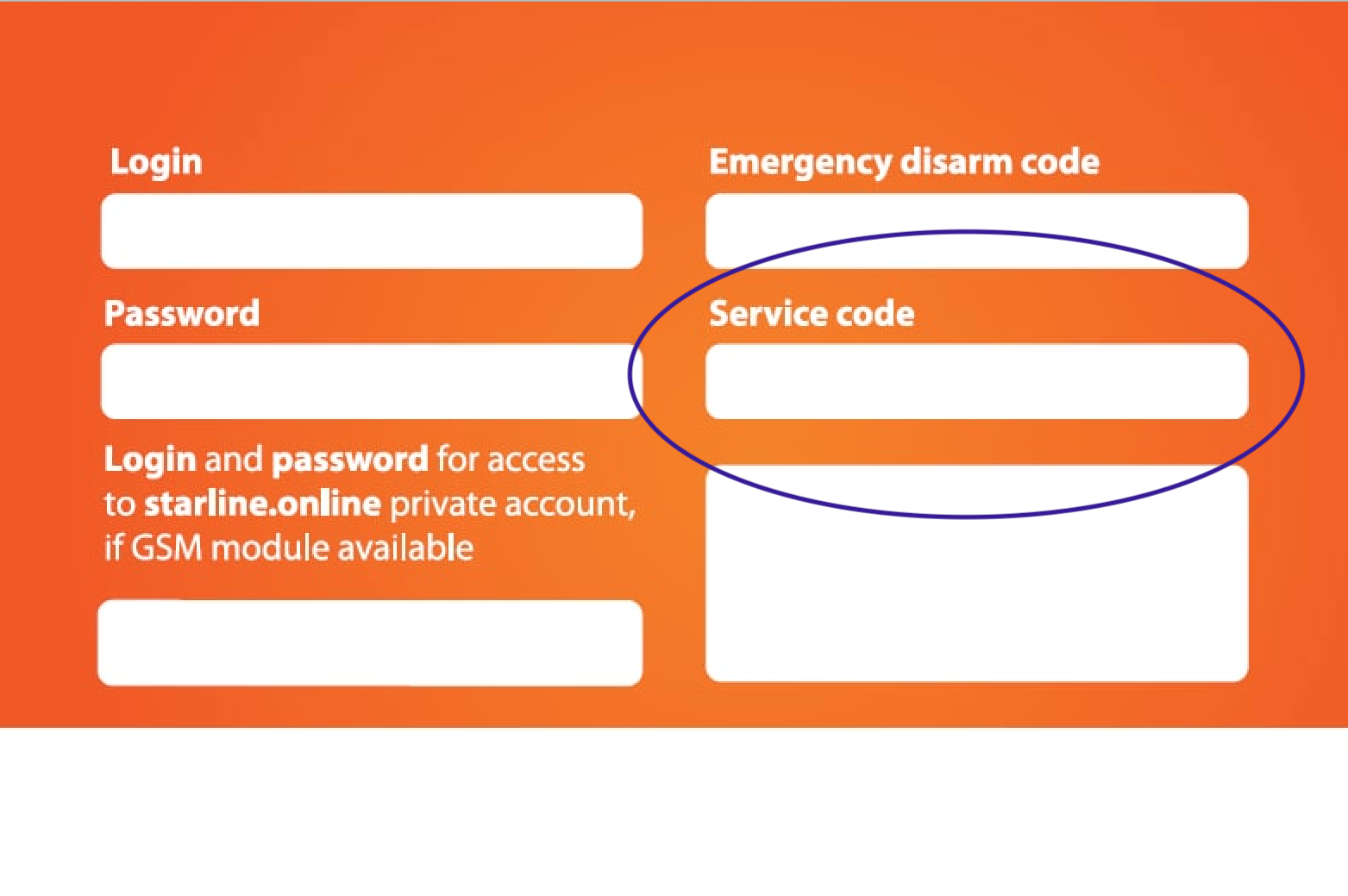](https://help.starline.ru/uploads/images/gallery/2025-09/Mp1image.png)After completing the wireless setup, switch off the ignition (for security systems with a GSM module, send an SMS with SETUP-).
#### StarLine i96CANUse the Bluetooth indicator module to operate the security system with StarLine Master app.[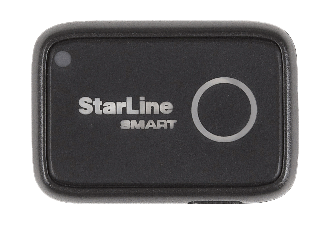](https://help.starline.ru/uploads/images/gallery/2024-01/SxMimage.png)
1. Connect Bluetooth indicator module to a computer using microUSB cable. 2\. Launch StarLine Master app. 3\. Set immobiliser to "Disarm" mode. 4\. Switch ignition On. Press service (valet) button 9 times. 5\. Turn the ignition off and then on. 6\. Make sure the Bluetooth indicator module and device are detected. Select the device from the list. 7\. Press «Configure». 8\. If needed, enter service code shown on the owner's plastic card in the next window. [](https://help.starline.ru/uploads/images/gallery/2025-09/Mp1image.png)Turn off the ignition 10 minutes after completing the wireless setup.
# Firmware update # Update of StarLine Master app If a new firmware version is available for the app, a window will pop up at startup with information about the update. [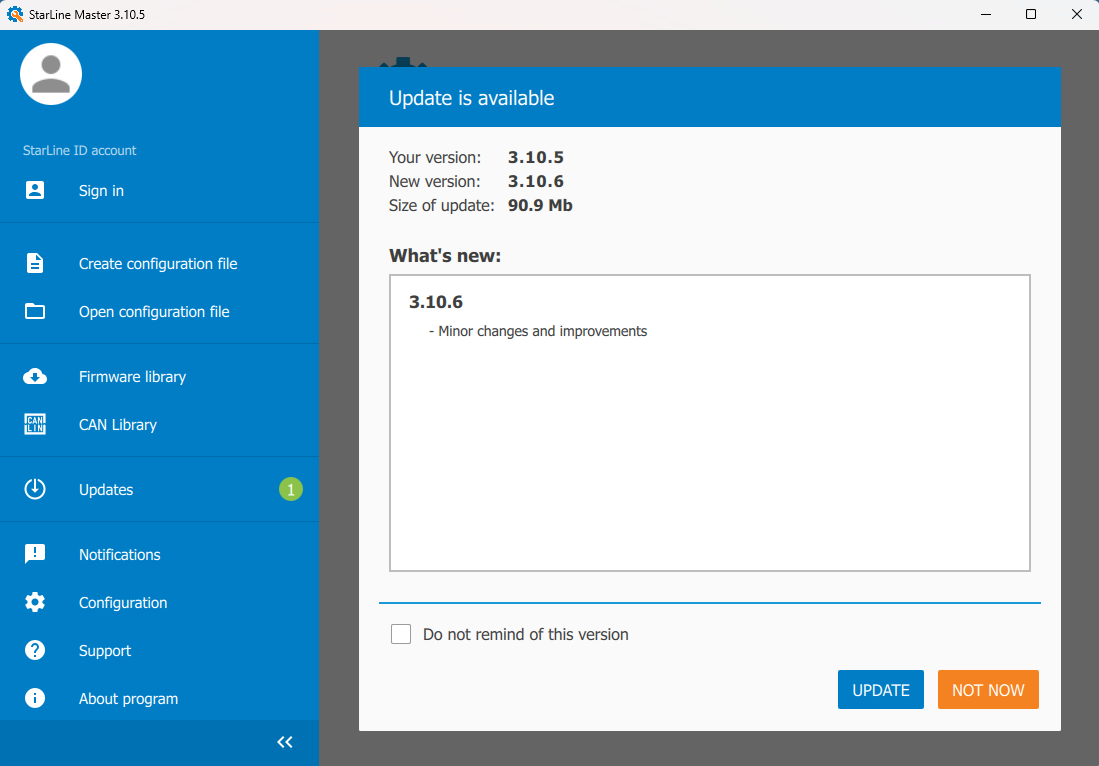](https://help.starline.ru/uploads/images/gallery/2025-09/starline-master-update.png) To postpone the update, press "Not now. You can start the update at any convenient time in the "Updates" menu. [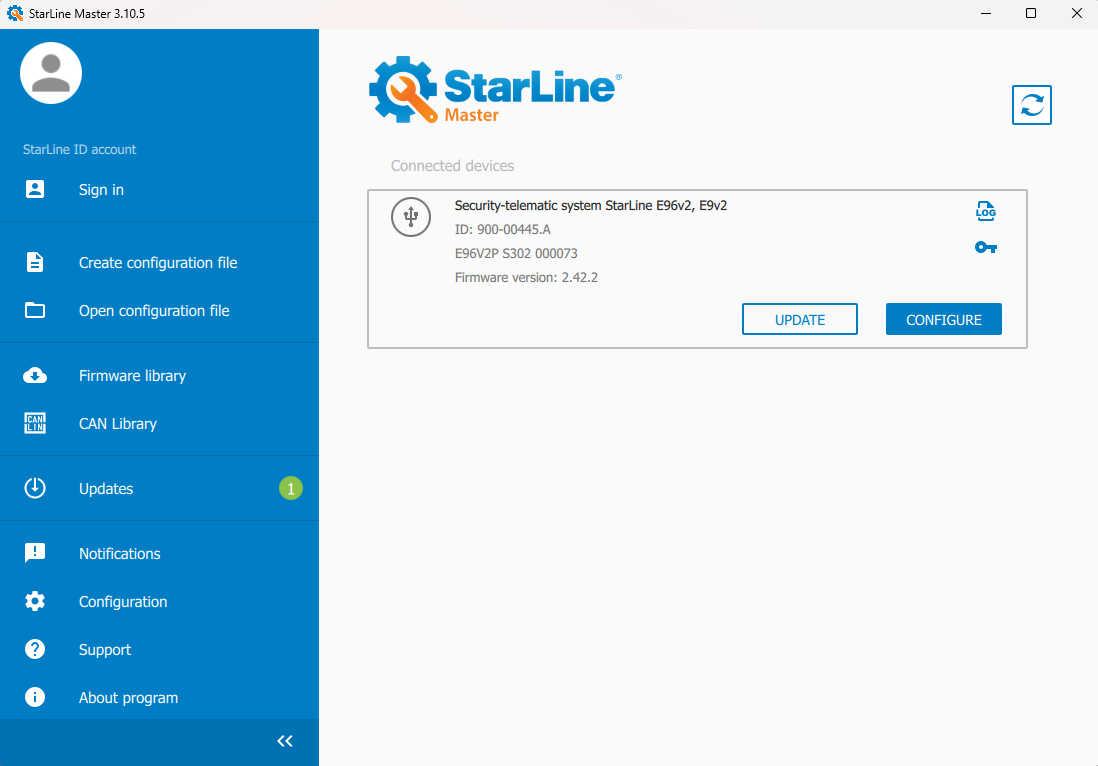](https://help.starline.ru/uploads/images/gallery/2025-09/Vt1starline-master-update.png) To start downloading the newer app version, press "Update". The update download will begin. [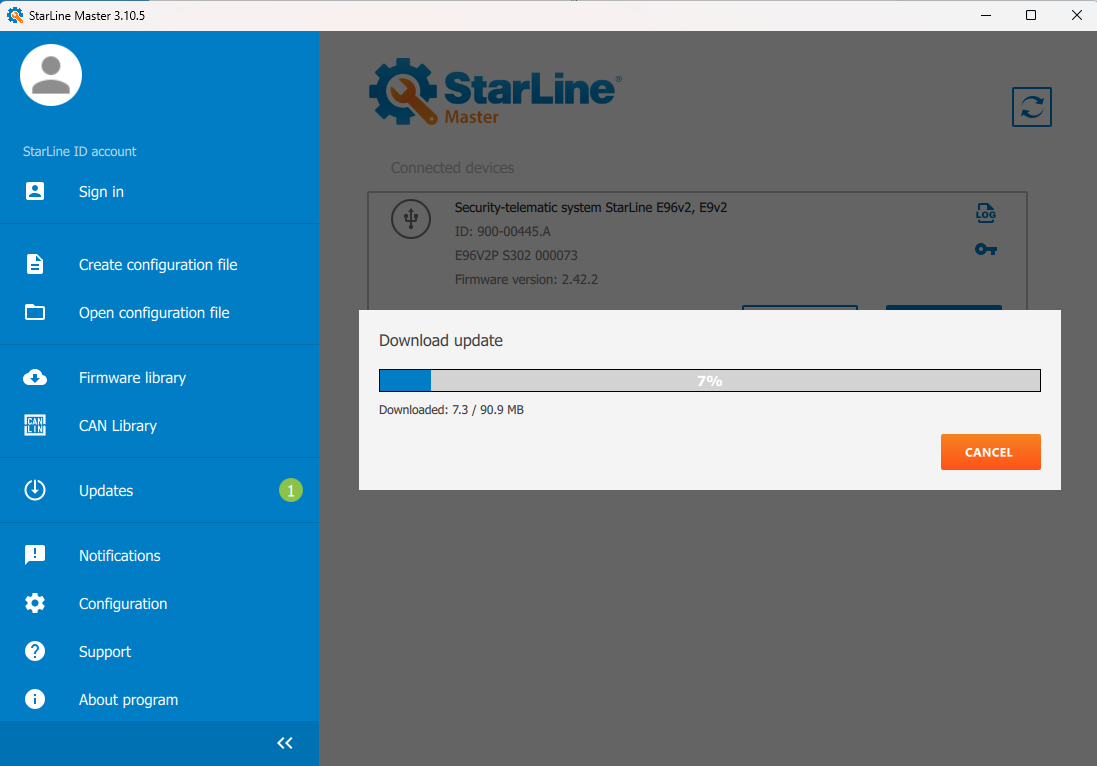](https://help.starline.ru/uploads/images/gallery/2025-09/starline-mastern-update.png) Then an information message will appear about start of the update installation, and the app will restart. [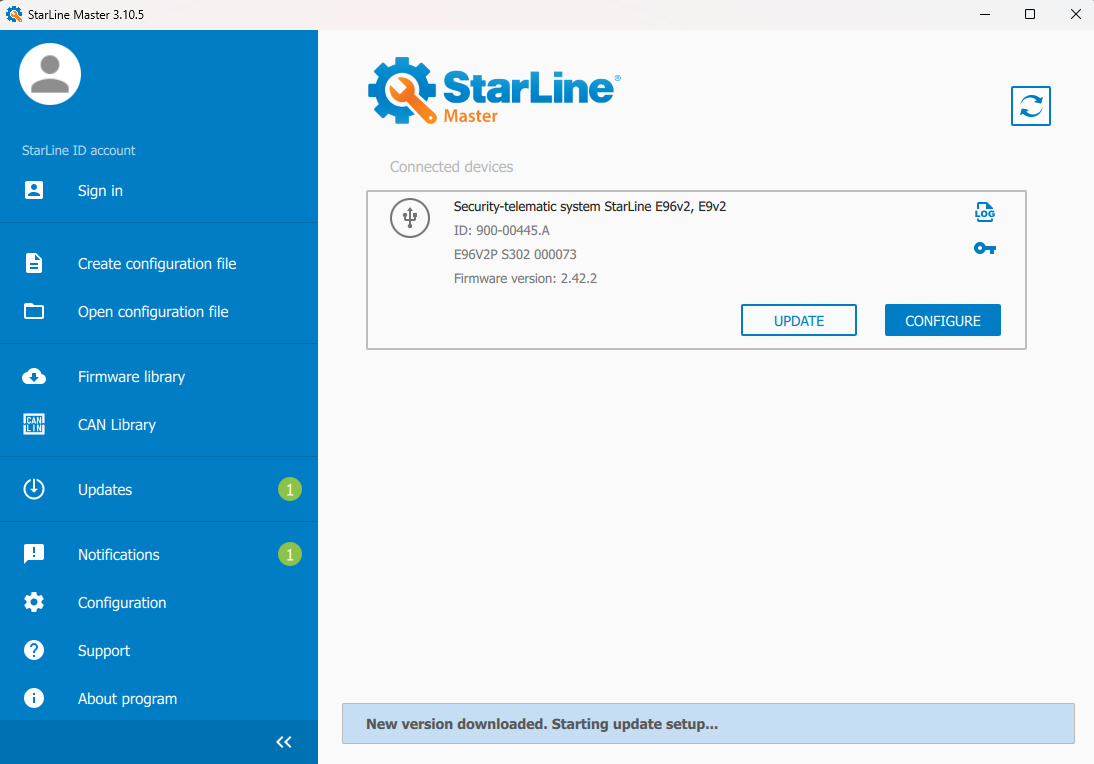](https://help.starline.ru/uploads/images/gallery/2025-09/Bxhstarline-master-update.png) # StarLine B9, B9v2, B9v3, S9, S9v2, S9v3, E9, E9v2, E9v3, i96CAN, M18, М66After the firmware update, security system settings remain the same.
### Main unit firmware update 1\. Connect security system to the computer using a microUSB cable. 2\. Launch the "StarLine Master" app and make sure the connected device is detected. 3\. Click "Update" 4\. Select firmware version from the firmware library and click "Update." 5\. In the window that appears, enter the service code found on the owner's plastic card. [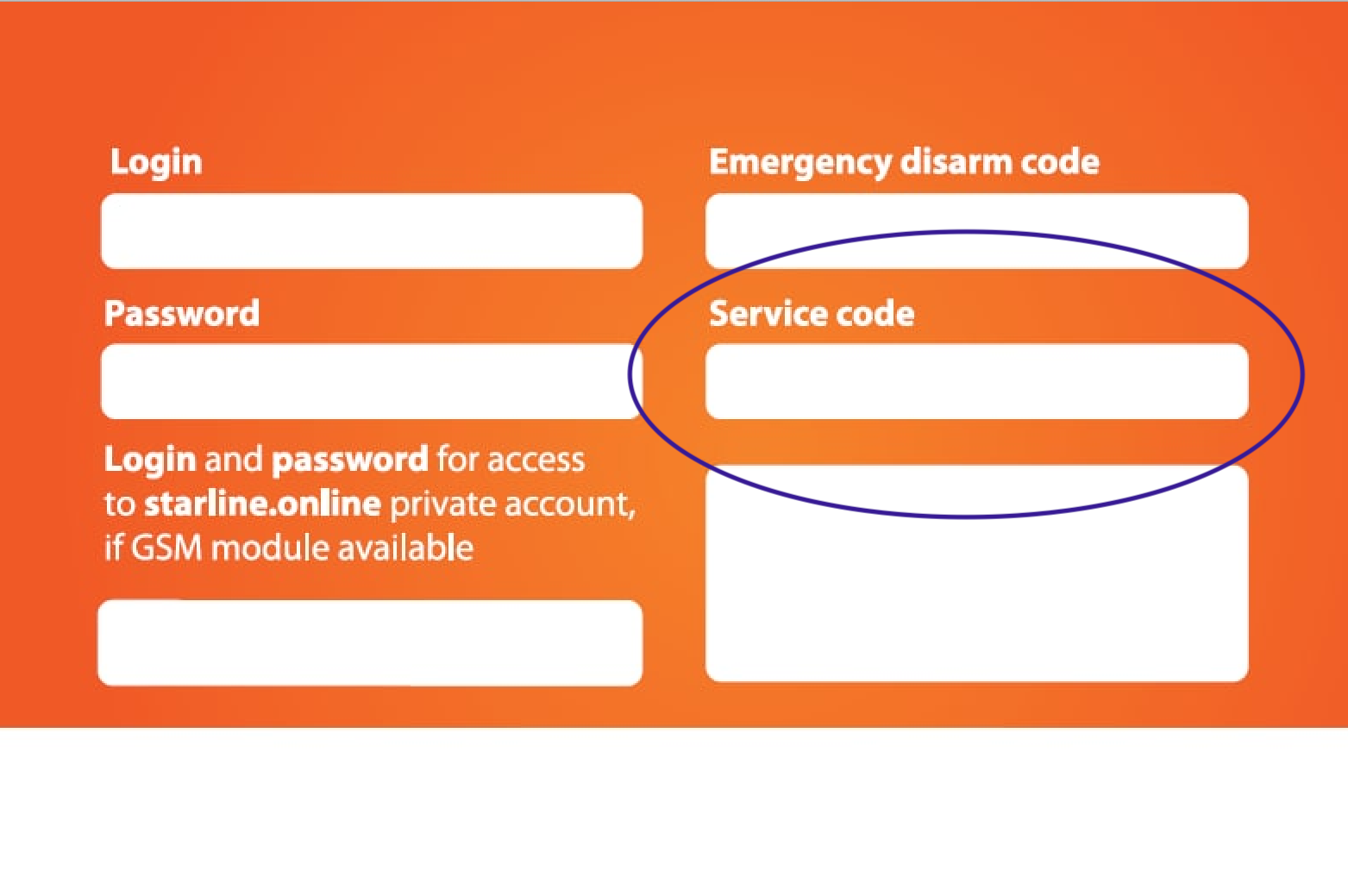](https://help.starline.ru/uploads/images/gallery/2025-09/plastic-card.png) 6\. The firmware download process will start. After download is finished, a message will appear confirming a successful download. [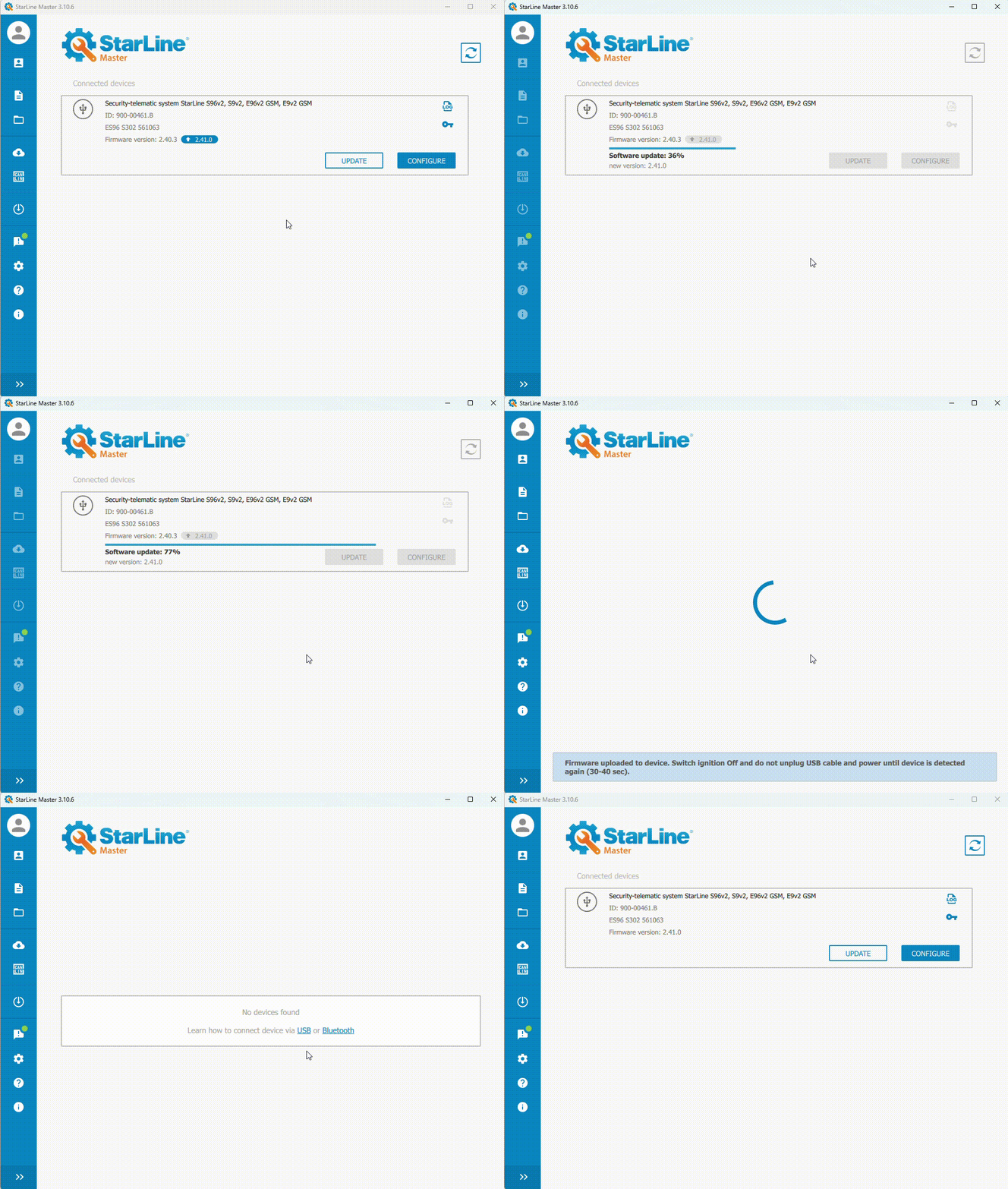](https://help.starline.ru/uploads/images/gallery/2025-09/co1fw-update-of-the-main-unit.gif) ### [Key fob firmware update](https://help.starline.ru/books/starline-master-Xh6/page/key-fob) ### [Bluetooth Smart tag firmware update](https://help.starline.ru/books/starline-master-Xh6/page/bluetooth-smart-tag) ### [Relay module StarLine R6 firmware update](https://help.starline.ru/books/starline-master-Xh6/page/starline-r6-r6-eco) # Wireless Update (Bluetooth Smart)After firmware update, security system settings remain the same.
Only for security systems equipped with the Bluetooth Smart module.
Use the Bluetooth indicator module for update. [](https://help.starline.ru/uploads/images/gallery/2024-01/119image.png)
### B9, B9v2, B9v3, S9, S9v2, S9v3, E9, E9v2, E9v3 How to Update: Step-by-Step 1. Open StarLine Мастер app. Connect the Bluetooth indicator module to the computer using a MicroUSB cable. 2. Disarm the security system. 3. Press the valet (service) button 9 times. Within 3 seconds, turn on the ignition. 4. Select the security system to be updated from the list that appears. 5. Click «Update». 6. Chose firmware version from Firmware library and press "Update". 7. In the window that appears, enter the service code found on the owner's plastic card. [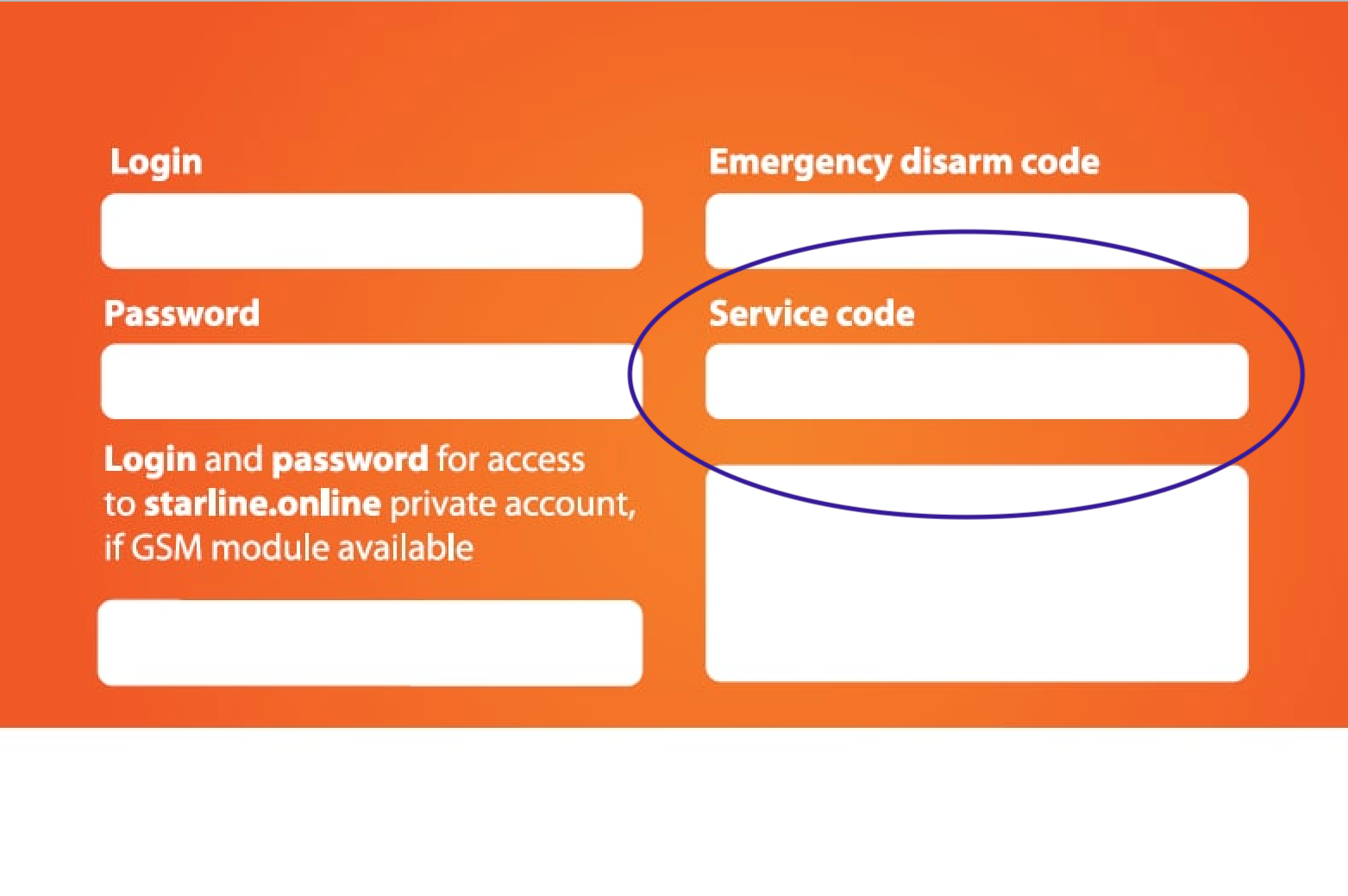](https://help.starline.ru/uploads/images/gallery/2025-09/image.png) 8. Firmware download process will start on the device. After download is complete, a message confirming successful download will appear.Turn off the ignition to apply the changes.
### StarLine i96CAN How to Update: Step-by-Step 1. Set immobiliser to Disarm mode. 2. Turn on the ignition. Press the valet (service) button 9 times. 3. Turn the ignition off and on again. 4. Launch StarLine Master app. 5. Connect the Bluetooth indicator module to the computer with a USB cable. 6. Select i96 CAN from the list that appears. 7. Click «Update». 8. Choose the firmware version from Firmware library and press "Update." 9. In the window that appears, enter the service code found on the plastic card included in the set.[](https://help.starline.ru/uploads/images/gallery/2025-09/image.png) 10. Firmware download process will start on the device. After download is complete, a message confirming successful download will appear. # StarLine R6, R6 ECOAfter firmware update, the security system settings remain the same.
For the security system to work with "StarLine Master" app, use the Bluetooth indicator module. [](https://help.starline.ru/uploads/images/gallery/2024-01/119image.png)
1. Connect the Bluetooth indicator module to the computer using a MicroUSB cable. 2\. Open StarLine Master app. 3\. Turn off ignition if it's on. 4\. Press Valet (service) button of security system 6 times. 5\. Turn on the ignition. Six light signals and six sound signals will follow. 6\. Two short signals from the sound alarm will follow. 7\. Make sure that the connected device and Bluetooth indicator module are detected. Select the device to be updated from the list. 8\. Click "Update" 9\. Chose Firmware version from Firmware library and press "Update". 10\. Firmware download process will start on the device. After download is complete, a message confirming successful download will appear. [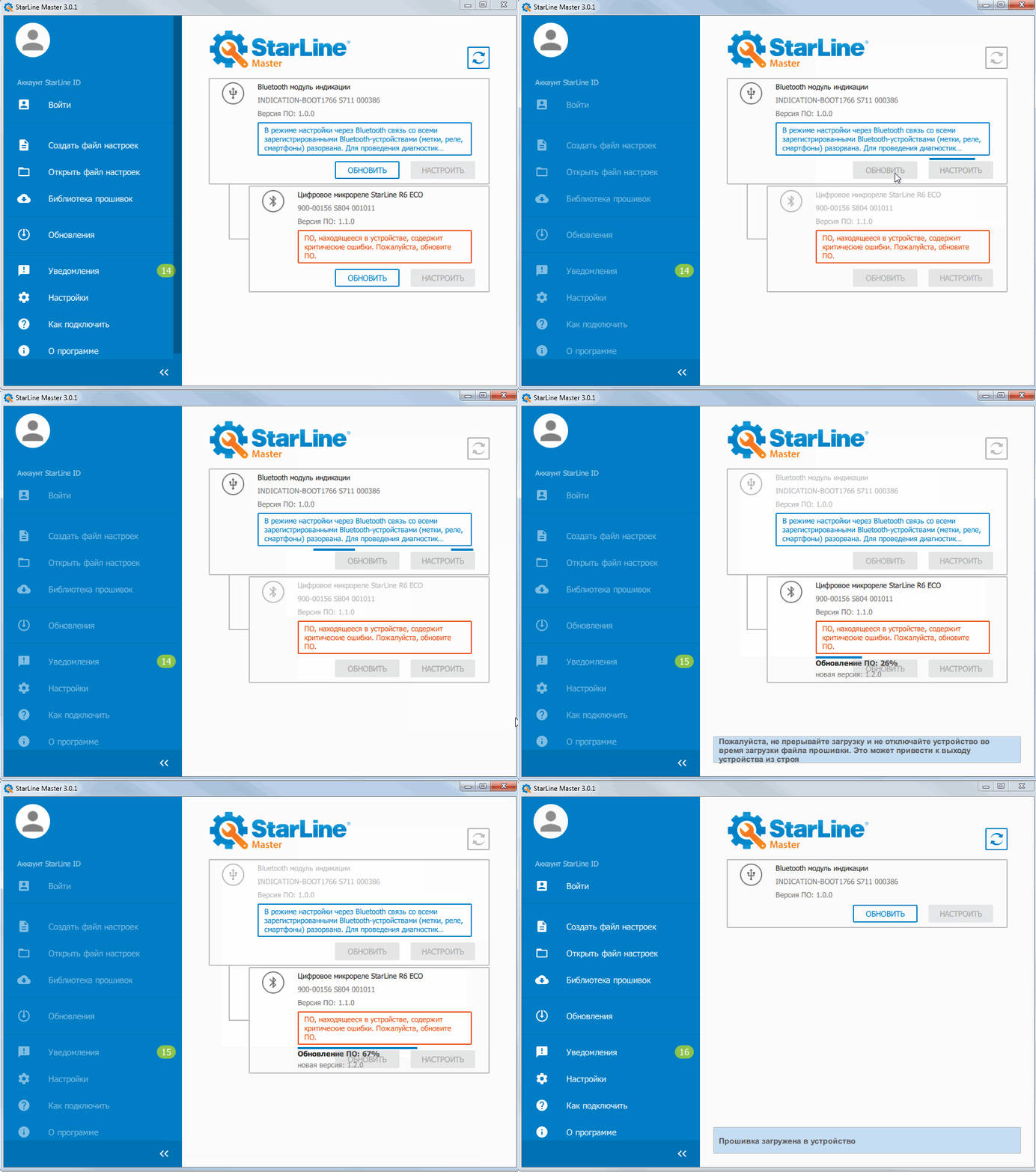](https://help.starline.ru/uploads/images/gallery/2024-06/obnovlenierele-uskor.gif) # Key fob ### Main key fob firmware update 1. Connect the additional key fob to the PC or smartphone using a MicroUSB cable. 2. Hold buttons 1 and 3 on the additional key fob at the same time until you hear the second beep sound, then release the buttons. 3. Start the StarLine Master app and make sure that no device is shown in the list. 4. Hold buttons 1 and 3 on the **MAIN** key fob at the same time until you hear the second beep sound, then release the buttons. [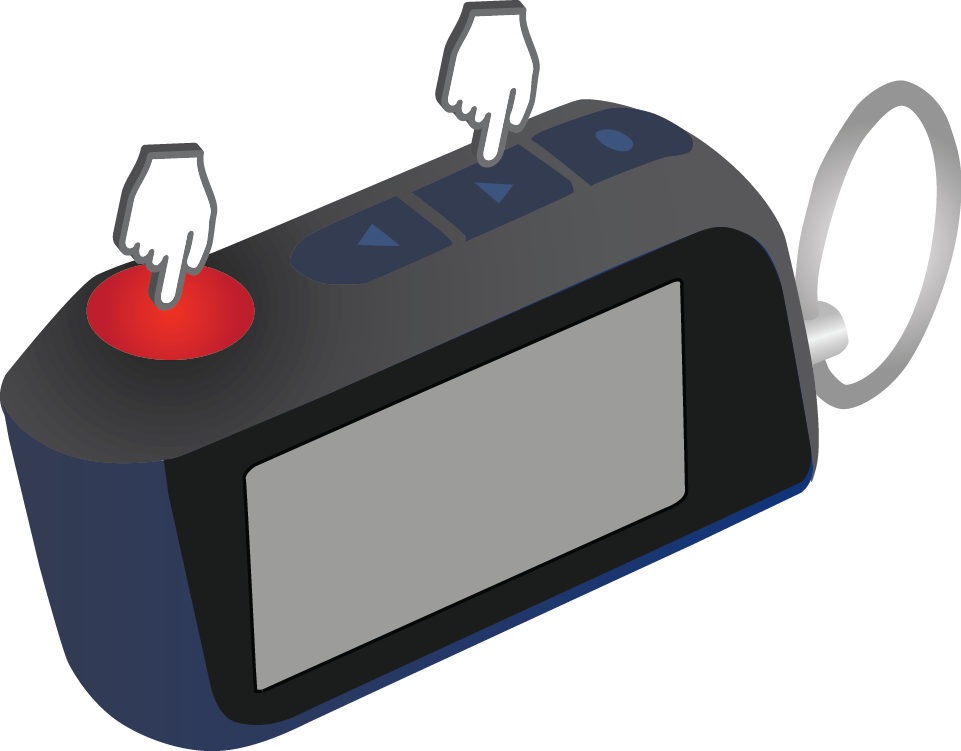](https://help.starline.ru/uploads/images/gallery/2024-06/Av0image.png) 5. Make sure the main key fob is detected in the StarLine Master app. 6. Press "Update" 7. Select firmware version from Firmware library and click "Update". 8. The main key fob firmware update process will start. After download is complete, a message will appear confirming the successful download. [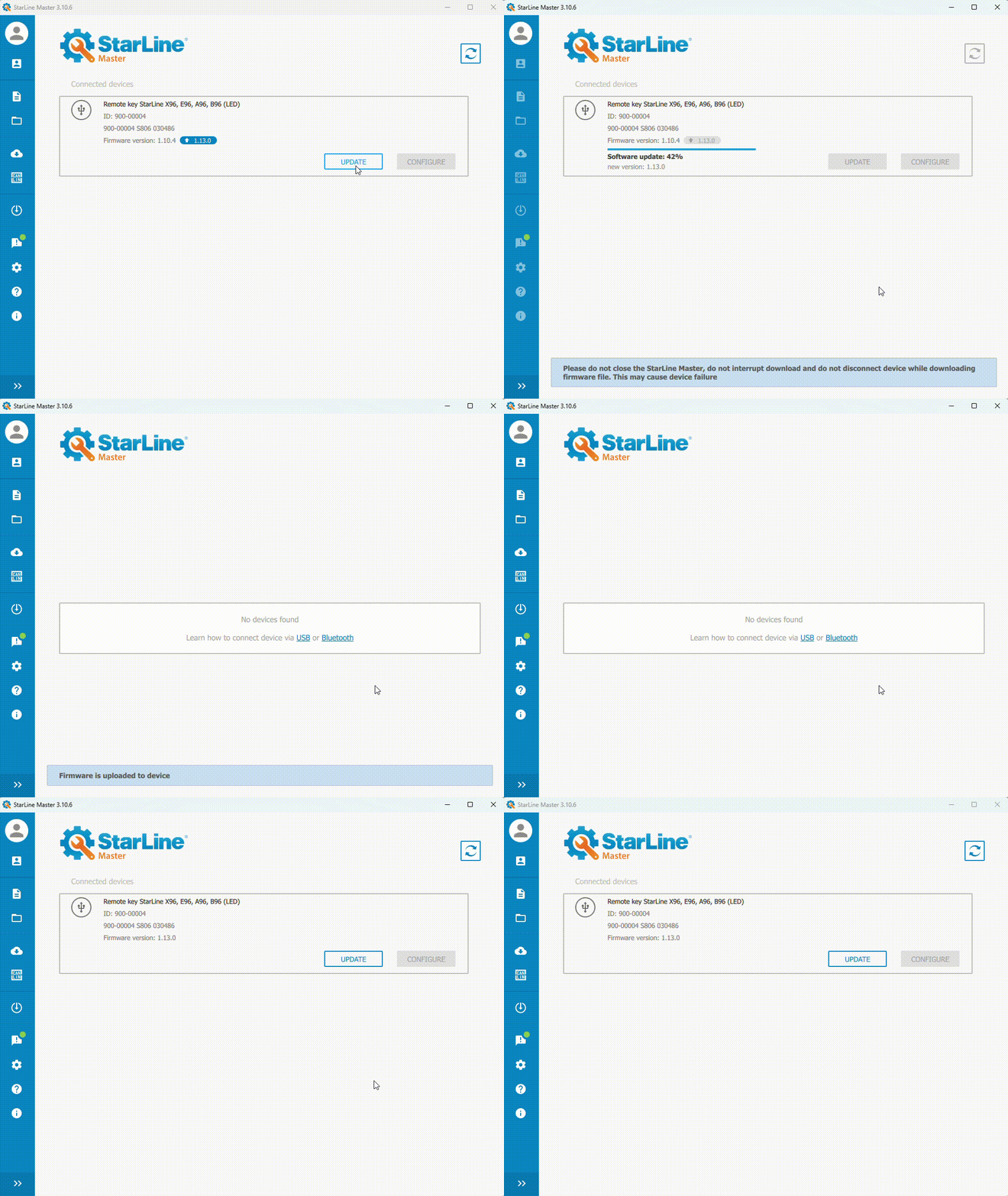](https://help.starline.ru/uploads/images/gallery/2025-09/main-key-fob-firmware-update.gif) ### Additional key fob firmware update 1. Connect the additional key fob to the PC or smartphone using a MicroUSB cable. 2. Hold buttons 1 and 3 on the additional key fob at the same time until you hear the second beep sound, then release the buttons. [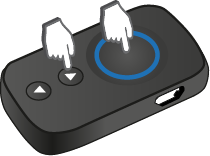](https://help.starline.ru/uploads/images/gallery/2024-06/cydimage.png) LED on the additional key fob will start blinking red, followed by sound signals. 3. Open the StarLine master app and make sure that key fob is detected. 4. Click "Update" 5. Select firmware version from Firmware library and click "Update". The additional key fob firmware update process will start. After download is complete, a message will appear confirming the successful download. # Bluetooth Smart TagUse the Bluetooth indicator module if: A PC or smartphone with StarLine Master installed does not support connection via Bluetooth; The tag does not support updates without the module. If you try to update the firmware in StarLine Master, a message will appear. To update the firmware, connect the indicator module to a PC or smartphone using a MicroUSB cable.
1. Remove the battery from tag. 2. Press and hold the button on tag, then install the battery. Tag's LED will light up red. [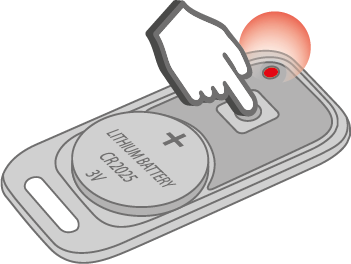](https://help.starline.ru/uploads/images/gallery/2024-06/VIBimage.png) 3. Wait until LED lights up yellow. [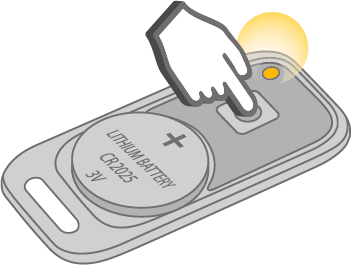](https://help.starline.ru/uploads/images/gallery/2024-06/40Mimage.png) 4. Release button. [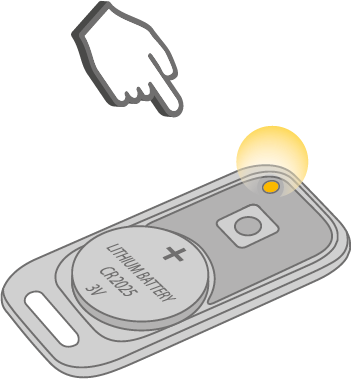](https://help.starline.ru/uploads/images/gallery/2024-06/IgAimage.png) 5. Open StarLine Master app. 6. Press «Update». 7. Chose Firmware version from Firmware Library and press "Update". The firmware update process for the tag will start. After the download is complete, a message confirming successful download will appear. 8. Remove battery from the tag and then put it back to restart tag. # Export logs To export logs from the security system, follow these steps: 1. Make sure the security system appears in the app. 2. In the window with the security system’s name, click — "Download log." 3. Save the archive to your local drive. # Download| **Firmware version** | **Released** | **Brief description** |
|---|---|---|
| ### 3.11.3 - [Windows (7-11)](https://apps.starline.ru/slm/builds/win32/v2/release/3.11.3/Setup_SLM_3.11.3.zip) - [Android (apk)](https://apps.starline.ru/slm/builds/android/release/3.11.3/starline-master.apk) - [Linux-x64 (ядро 4.10+) (beta)](https://apps.starline.ru/slm/builds/linux64/v2/release/3.11.3/setup-slm-linux-x64-3.11.3.zip) | 14.05.2026 | **Added** StarLine A93v3 and StarLine A93v3 BT support **Added** Firmware and configuration files version U8 for StarLine A93v2 **Added** Saving device model ID when saving log **Changed** Improved device detection for StarLine A93v2 **Fixed** Displaying authorised user icon |
| ### 3.10.6 - [Windows (7-11)](https://apps.starline.ru/slm/builds/win32/v2/release/3.10.6/Setup_SLM_3.10.6.zip) - macOS (10.13+) - [Linux-x64 (ядро 4.10+) (beta)](https://apps.starline.ru/slm/builds/linux64/v2/release/3.10.6/setup-slm-linux-x64-3.10.6.zip) - [Android (Google Play)](https://play.google.com/store/apps/details?id=ru.starline.starline_master) - [Android (App Gallery)](https://appgallery.huawei.com/#/app/C103373263) - [iOS](https://apps.apple.com/ru/app/id1496343179) | 18.07.2025 | **Fixed** Android 15 and above: error opening settings file from the system. **Fixed** Android: fixed an error with opening flex logic when there are many programs. **Changed** Small changes and improvements. |
| ### 3.10.5 - [Windows (7-11)](https://apps.starline.ru/slm/builds/win32/v2/release/3.10.5/Setup_SLM_3.10.5.zip) - macOS (10.13+) - [Linux-x64 (ядро 4.10+) (beta)](https://apps.starline.ru/slm/builds/linux64/v2/release/3.10.5/setup-slm-linux-x64-3.10.5.zip) - [Android (Google Play)](https://play.google.com/store/apps/details?id=ru.starline.starline_master) - [Android (App Gallery)](https://appgallery.huawei.com/#/app/C103373263) - [iOS](https://apps.apple.com/ru/app/id1496343179) | 06.06.2025 | **Added** Support for U7 firmware for A93V2. **Fixed** App freezes in diagnostics when pressing the "Exit configuration via BLE" button. |