Use the Bluetooth indicator module if: A PC or smartphone with StarLine Master installed does not support connection via Bluetooth; The tag does not support updates without the module. If you try to update the firmware in StarLine Master, a message will appear. To update the firmware, connect the indicator module to a PC or smartphone using a MicroUSB cable.
1. Remove the battery from tag. 2. Press and hold the button on tag, then install the battery. Tag's LED will light up red. [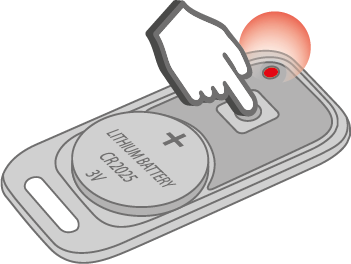](https://help.starline.ru/uploads/images/gallery/2024-06/VIBimage.png) 3. Wait until LED lights up yellow. [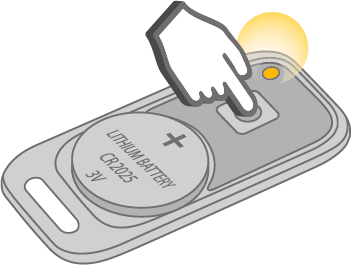](https://help.starline.ru/uploads/images/gallery/2024-06/40Mimage.png) 4. Release button. [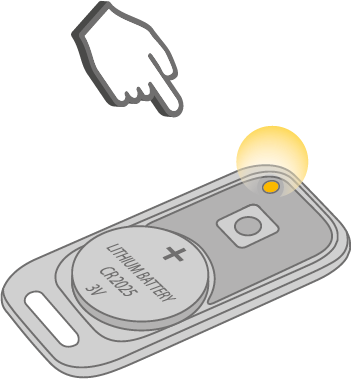](https://help.starline.ru/uploads/images/gallery/2024-06/IgAimage.png) 5. Open StarLine Master app. 6. Press «Update». 7. Chose Firmware version from Firmware Library and press "Update". The firmware update process for the tag will start. After the download is complete, a message confirming successful download will appear. 8. Remove battery from the tag and then put it back to restart tag.