Use the Bluetooth indicator module to operate the security system with StarLine Master app.[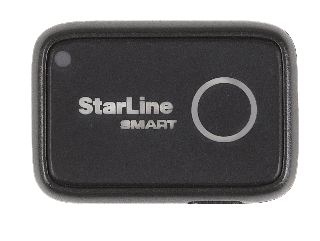](https://help.starline.ru/uploads/images/gallery/2024-01/119image.png)
1. Connect Bluetooth indicator module to a computer using microUSB cable. 2\. Launch StarLine Master app. 3\. Set the security system to "Disarmed" mode 4\. Put the security system into Bluetooth setup mode using one of following ways: 4.1 Press service (valet) button 9 times. Switch ignition On within 3 sec. 4.2 Press service (valet) button 9 times. Wait for the LED on the service button to light up, and while it is on, press the service button once. 4.3 Send an SMS with SETUP+ (for security systems with a GSM module). 5\. Make sure the Bluetooth indicator module and device are detected. Select the device from the list. 6\. Click «Configurate». 7\. If needed, enter service code shown on the owner's plastic card in the next window. [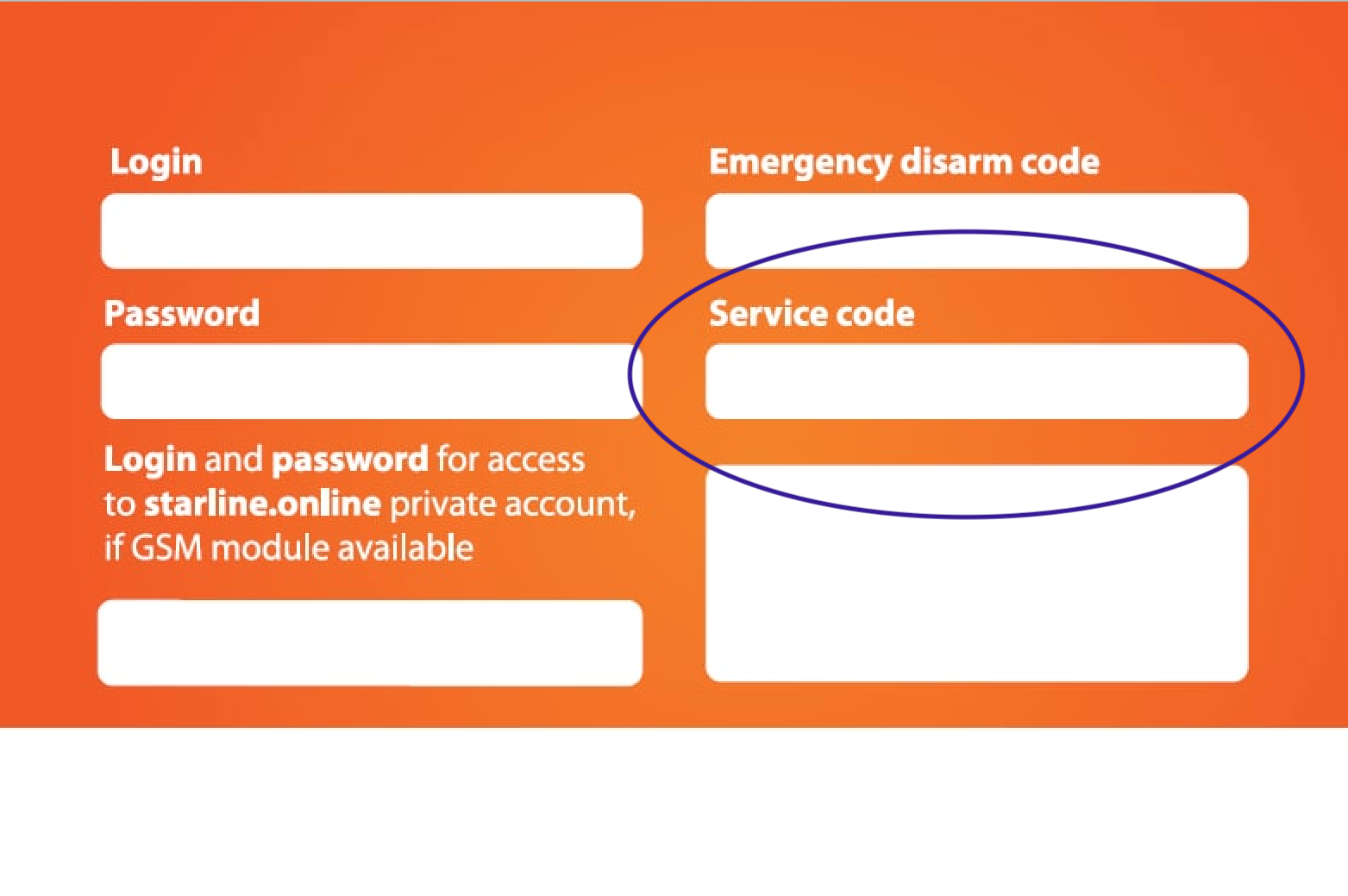](https://help.starline.ru/uploads/images/gallery/2025-09/Mp1image.png)After completing the wireless setup, switch off the ignition (for security systems with a GSM module, send an SMS with SETUP-).
#### StarLine i96CANUse the Bluetooth indicator module to operate the security system with StarLine Master app.[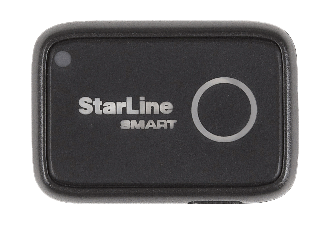](https://help.starline.ru/uploads/images/gallery/2024-01/SxMimage.png)
1. Connect Bluetooth indicator module to a computer using microUSB cable. 2\. Launch StarLine Master app. 3\. Set immobiliser to "Disarm" mode. 4\. Switch ignition On. Press service (valet) button 9 times. 5\. Turn the ignition off and then on. 6\. Make sure the Bluetooth indicator module and device are detected. Select the device from the list. 7\. Press «Configure». 8\. If needed, enter service code shown on the owner's plastic card in the next window. [](https://help.starline.ru/uploads/images/gallery/2025-09/Mp1image.png)Turn off the ignition 10 minutes after completing the wireless setup.